Status timeline
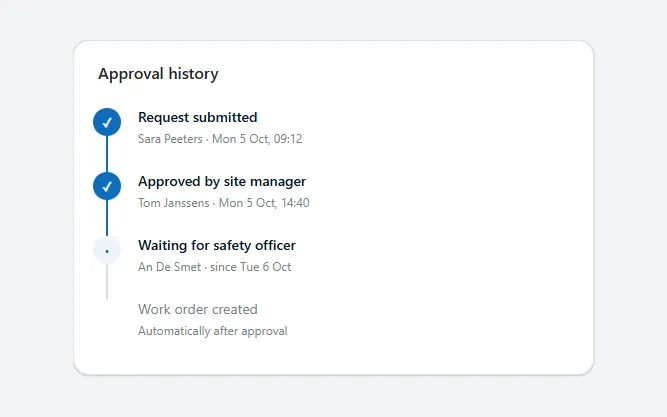
A vertical timeline of approval or workflow steps with done, current and upcoming states, a progress line and who and when for each step.
- Version
- 1.0.0
- Updated
- Verified in Studio
- Not yet
- Author
- Ynias Bensch
- Tags
Overview
A timeline shows where a request or record is in its workflow. Every step has a dot: a filled circle with a check mark for steps that are done, a tinted circle for the current step, and an outlined circle for what is still to come. A line runs between the dots and fills with the theme colour up to the last step that is done.
Each step has a title and one line of detail, such as who acted and when. Upcoming steps are muted, so the current step stands out.
When to use
- Approvals, onboarding and other workflows with a fixed order of steps.
- The history of a record next to its details or in a side panel.
When not to use
- An open-ended stream of events and comments: use an activity feed.
- Steps people move through themselves in a form: use a stepper.
Controls used
| Control | Version |
|---|---|
| GroupContainer | 1.5.0 |
| ModernText | 1.0.0 |
| Gallery | 2.15.0 |
YAML
Works as is, with example data inline. Paste it into a screen or container; the steps are underHow to paste.
Not yet verified in Power Apps Studio. The control versions are drafted from documentation. If Studio flags one, see How to paste for the fix.
- StatusTimelineRoot:
    Control: GroupContainer@1.5.0
    Variant: AutoLayout
    Properties:
      BorderColor: =ColorFade(App.Theme.Colors.Darker70, 88%)
      BorderThickness: =1
      DropShadow: =DropShadow.Light
      Fill: =Color.White
      Height: =StatusTimelineTitle.Height + StatusTimelineTrack.Height + 12 + 40
      LayoutDirection: =LayoutDirection.Vertical
      LayoutGap: =12
      PaddingBottom: =20
      PaddingLeft: =20
      PaddingRight: =20
      PaddingTop: =20
      RadiusBottomLeft: =16
      RadiusBottomRight: =16
      RadiusTopLeft: =16
      RadiusTopRight: =16
      Width: =Min(520, Parent.Width)
    Children:
      - StatusTimelineTitle:
          Control: ModernText@1.0.0
          Properties:
            AccessibleLabel: =Self.Text
            AlignInContainer: =AlignInContainer.Stretch
            FontWeight: =FontWeight.Semibold
            Height: =26
            LayoutMinHeight: =0
            LayoutMinWidth: =80
            PaddingBottom: =0
            PaddingTop: =0
            Size: =16
            Text: ="Approval history"
            Wrap: =false
      - StatusTimelineTrack:
          Control: GroupContainer@1.5.0
          Variant: ManualLayout
          Properties:
            AlignInContainer: =AlignInContainer.Stretch
            DropShadow: =DropShadow.None
            FillPortions: =0
            Height: =StatusTimelineGallery.Height
            LayoutMinHeight: =0
            LayoutMinWidth: =120
          Children:
            - StatusTimelineLine:
                Control: GroupContainer@1.5.0
                Variant: ManualLayout
                Properties:
                  DropShadow: =DropShadow.None
                  Fill: =ColorFade(App.Theme.Colors.Darker70, 85%)
                  Height: =Max(0, StatusTimelineGallery.AllItemsCount - 1) * StatusTimelineGallery.TemplateHeight
                  Width: =2
                  X: =13
                  Y: =24
            - StatusTimelineLineDone:
                Control: GroupContainer@1.5.0
                Variant: ManualLayout
                Properties:
                  DropShadow: =DropShadow.None
                  Fill: =App.Theme.Colors.Primary
                  Height: |
                    =Min(CountRows(Filter(StatusTimelineGallery.AllItems, State = "Done")), StatusTimelineGallery.AllItemsCount - 1) * StatusTimelineGallery.TemplateHeight
                  Width: =2
                  X: =13
                  Y: =24
            - StatusTimelineGallery:
                Control: Gallery@2.15.0
                Variant: Vertical
                Properties:
                  AccessibleLabel: =StatusTimelineTitle.Text
                  BorderThickness: =0
                  Height: =Self.AllItemsCount * (Self.TemplateHeight + Self.TemplatePadding) + Self.TemplatePadding
                  Items: |
                    =Table(
                        {State: "Done", Title: "Request submitted", Detail: "Sara Peeters · Mon 5 Oct, 09:12"},
                        {State: "Done", Title: "Approved by site manager", Detail: "Tom Janssens · Mon 5 Oct, 14:40"},
                        {State: "Current", Title: "Waiting for safety officer", Detail: "An De Smet · since Tue 6 Oct"},
                        {State: "Upcoming", Title: "Work order created", Detail: "Automatically after approval"}
                    )
                  ShowScrollbar: =false
                  TabIndex: =0
                  TemplatePadding: =0
                  TemplateSize: =64
                  Width: =Parent.Width
                  X: =0
                  Y: =0
                Children:
                  - StatusTimelineDot:
                      Control: ModernText@1.0.0
                      Properties:
                        AccessibleLabel: =ThisItem.State
                        Align: =Align.Center
                        BorderColor: |
                          =If(ThisItem.State = "Upcoming", ColorFade(App.Theme.Colors.Darker70, 80%), App.Theme.Colors.Primary)
                        BorderThickness: =If(ThisItem.State = "Done", 0, 2)
                        Color: =If(ThisItem.State = "Done", Color.White, App.Theme.Colors.Primary)
                        Fill: |
                          =Switch(
                              ThisItem.State,
                              "Done", App.Theme.Colors.Primary,
                              "Current", App.Theme.Colors.Lighter80,
                              Color.White
                          )
                        FontWeight: =FontWeight.Semibold
                        Height: =28
                        PaddingBottom: =0
                        PaddingLeft: =0
                        PaddingRight: =0
                        PaddingTop: =0
                        RadiusBottomLeft: =14
                        RadiusBottomRight: =14
                        RadiusTopLeft: =14
                        RadiusTopRight: =14
                        Size: =12
                        Text: =If(ThisItem.State = "Done", "✓", ThisItem.State = "Current", "•", "")
                        Width: =28
                        Wrap: =false
                        X: =0
                        Y: =10
                  - StatusTimelineItemTitle:
                      Control: ModernText@1.0.0
                      Properties:
                        AccessibleLabel: =Self.Text
                        Color: =If(ThisItem.State = "Upcoming", ColorFade(App.Theme.Colors.Darker70, 45%), App.Theme.Colors.Darker70)
                        FontWeight: =If(ThisItem.State = "Upcoming", FontWeight.Normal, FontWeight.Semibold)
                        Height: =22
                        PaddingBottom: =0
                        PaddingTop: =0
                        Size: =14
                        Text: =ThisItem.Title
                        Width: =Parent.TemplateWidth - 44
                        Wrap: =false
                        X: =40
                        Y: =8
                  - StatusTimelineItemDetail:
                      Control: ModernText@1.0.0
                      Properties:
                        AccessibleLabel: =Self.Text
                        Color: =ColorFade(App.Theme.Colors.Darker70, 45%)
                        Height: =20
                        PaddingBottom: =0
                        PaddingTop: =0
                        Size: =12
                        Text: =ThisItem.Detail
                        Width: =Parent.TemplateWidth - 44
                        Wrap: =false
                        X: =40
                        Y: =30
Make it yours
The example runs on sample data. Replace these properties to connect it to your app.
Items on StatusTimelineGallery
One row per step, in order. State is Done, Current or Upcoming; Detail is the line under the title.
In the YAML
Items: |
  =Table(
      {State: "Done", Title: "Request submitted", Detail: "Sara Peeters · Mon 5 Oct, 09:12"},
      {State: "Done", Title: "Approved by site manager", Detail: "Tom Janssens · Mon 5 Oct, 14:40"},
      {State: "Current", Title: "Waiting for safety officer", Detail: "An De Smet · since Tue 6 Oct"},
      {State: "Upcoming", Title: "Work order created", Detail: "Automatically after approval"}
  )
Your version
Items: |
  =ForAll(
      Sort(Filter(ApprovalSteps, Request = varRequest.ID), Order) As s,
      {
          State: s.Status,
          Title: s.Title,
          Detail: s.Approver & If(IsBlank(s.Completed), "", " · " & Text(s.Completed, "ddd d mmm, hh:mm"))
      }
  )
Text on StatusTimelineTitle
The title of the card.
In the YAML
Text: ="Approval history"Your version
Text: ="Request progress"How to paste
- Open your app in Power Apps Studio.
- Check that modern controls are on: Settings → Updates → Modern controls and themes. In newer environments they are on by default.
- Copy the YAML with the Copy button above the code.
- In the Tree view, select the screen or container that should hold the component and press Ctrl+V. The whole component arrives as one container,
StatusTimelineRoot, with all its controls inside. - Work through Make it yours to swap the example data for your own.
Where your version of Studio has a code view for a control or screen, you can paste the same YAML there instead of into the tree view.
When Studio flags a control version
Each control in the YAML names its version, like Control: ModernButton@1.0.0. If that version is newer than what your environment knows, Studio falls back to the version it has or flags the control. All controls of one type in an app must also use the same version, so an app that already has an older ModernButton can reject the paste. To fix it, insert the same control from the Insert pane, copy it as code, note the version on its Control: line, update every matching line in the YAML and paste again.
Missing a component, or did this one not paste cleanly? Suggest a component or report an issue.