Govern Custom Connectors With URL Patterns in a Tenant-Level Data Policy
How to inventory every custom connector in a Power Platform tenant with PowerShell and move from an empty data policy to an allowlist that blocks the rest.
Key takeaways
- A new tenant-level data policy has one custom connector rule:
*set to Ignore. Until you change it, custom connectors can reach any HTTP endpoint and mix with Business and Non-Business connectors alike. - Use a tenant-level policy, created with the Power Platform Administrator role. It's the only kind that covers more than one environment, so it's the only kind that can govern custom connectors across the tenant.
- Inventory first.
Get-AdminPowerAppConnectorgives you the host URL atInternal.backendService.serviceUrl, and the connection count tells you what is really in use. - Sort every host into allow, ask or block. Management-plane APIs, zero-connection endpoints and plain HTTP go in ask. Tunnels to personal devices go to security today, not into a policy.
- Add the allow patterns while
*is still Ignore, then flip*to Blocked on an announced date. From that moment every unmatched custom connector stops working in every environment in scope. - Microsoft recommends only URL patterns at tenant level. A custom connector added by name through PowerShell overrides the patterns.
A custom connector is a maker-built wrapper around any REST API. Any means any: an internal API behind Entra application proxy, a Microsoft management endpoint, a public demo API, or a home server reached through a tunnel. Data policies can govern them, but at Contoso, like at most organisations I've seen, nobody had ever looked.
This post is the path I took from "we have a data policy" to an allowlist of custom connector hosts with everything else blocked. It includes the PowerShell errors on a locked-down laptop, because you will hit the same ones.
Why this matters
Open the Custom connectors step of a new tenant-level data policy and you see exactly one rule: pattern *, data group Ignore.
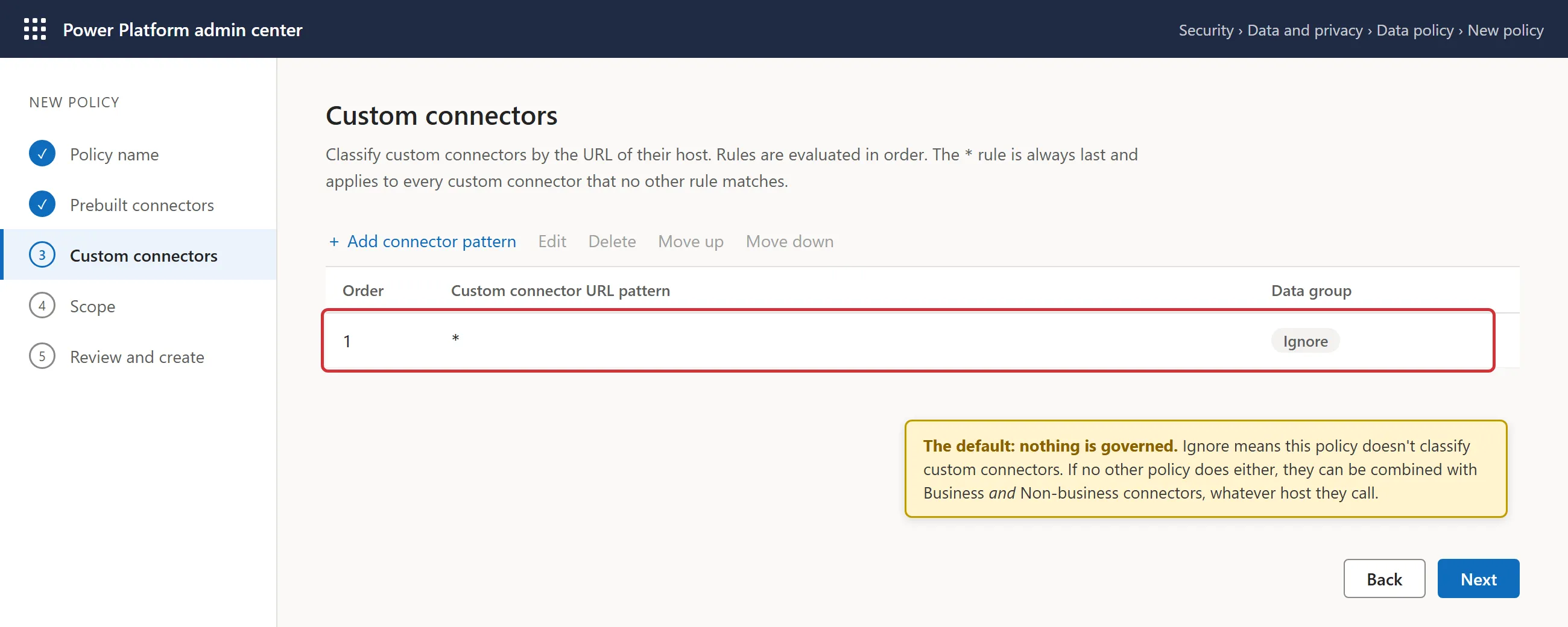
Ignore means the policy does not classify custom connectors at all. It defers to other policies, and if no other rule covers them, custom connectors can be combined with both Business and Non-Business connectors (Microsoft Learn). In practice: a flow can read from SharePoint, classified as Business, and post the result to a custom connector pointing at any host on the internet, and the policy will not stop it.
So the default is: custom connectors are not governed. Not blocked, not allowed, just ignored.
Start with a tenant-level policy
Custom connector URL patterns live in a tenant-level data policy. That's also the only kind of policy that can cover more than one environment: an environment-level policy holds exactly one (policy scope). You create it with the Power Platform Administrator role.
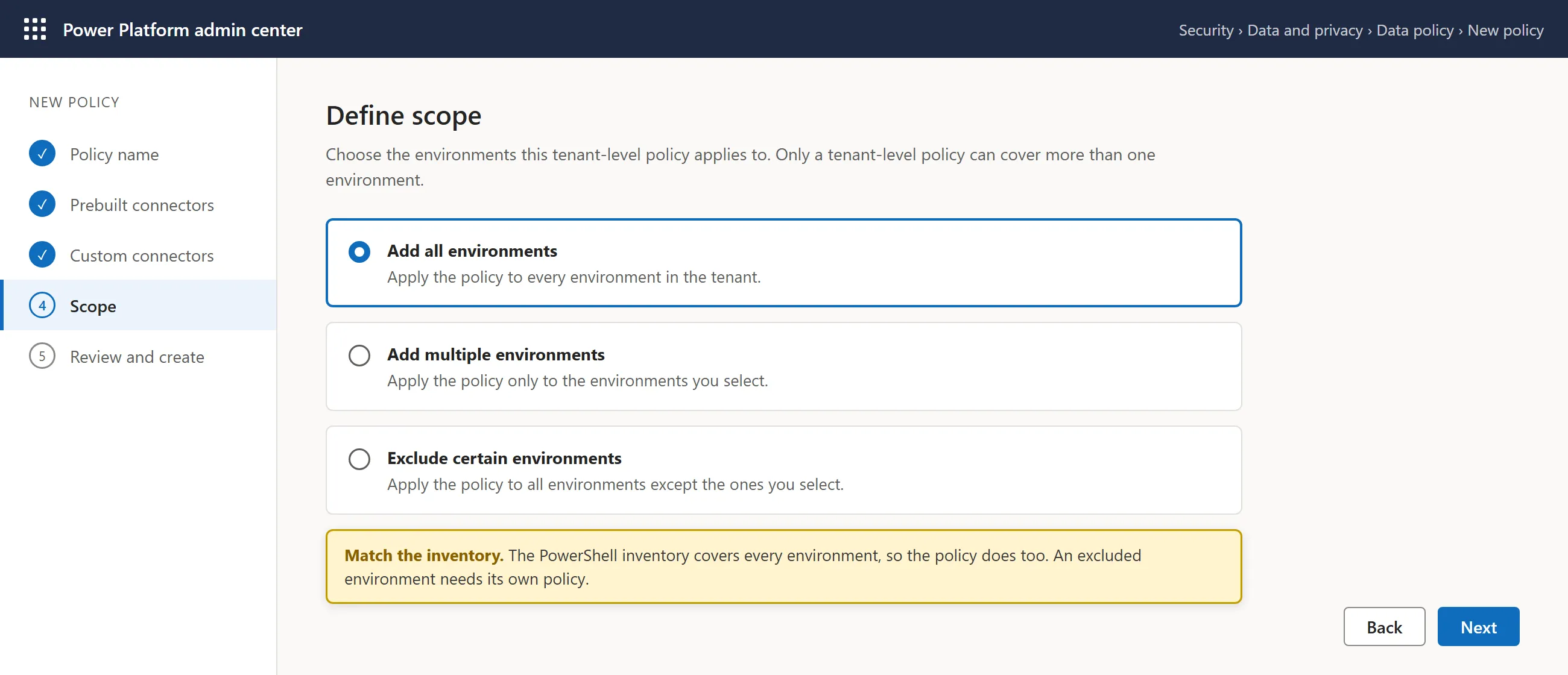
A tenant-level policy has a Scope step with three options: all environments, multiple selected environments, or all environments except the ones you exclude. The inventory below covers the whole tenant, so I scope the policy to all environments. If you exclude an environment, it needs a policy of its own.
Getting PowerShell to work on a locked-down machine
The inventory needs the Microsoft.PowerApps.Administration.PowerShell module. On a managed laptop behind a proxy, installing it took four rounds of error and fix.
1. Install-Module fails with "No match was found". The PowerShell Gallery wasn't reachable. Get-PSRepository returned "Unable to find module repositories", so there was no repository registered at all. Forcing TLS 1.2 alone did not help. What worked was passing my default credentials to the proxy and re-registering the default repository.
2. "Running scripts is disabled on this system". The execution policy blocked the module's scripts. Setting it for the current process only avoids a change to the machine and needs no admin rights.
3. Add-PowerAppsAccount fails with "ActiveX control ... cannot be instantiated because the current thread is not in a single-threaded apartment". The sign-in dialog needs an STA thread. There are three known workarounds: run the cmdlet a second time, use PowerShell ISE, or start powershell.exe -STA.
4. The module needs Windows PowerShell 5.x. Not PowerShell 7. If you're in pwsh, open the blue Windows PowerShell instead.
The whole sequence, verified with module version 2.0.218 on Windows PowerShell 5.1:
[Net.ServicePointManager]::SecurityProtocol = [Net.SecurityProtocolType]::Tls12
[System.Net.WebRequest]::DefaultWebProxy.Credentials = [System.Net.CredentialCache]::DefaultNetworkCredentials
Register-PSRepository -Default
Install-Module Microsoft.PowerApps.Administration.PowerShell -Scope CurrentUser

Set-ExecutionPolicy -Scope Process -ExecutionPolicy RemoteSigned
Import-Module Microsoft.PowerApps.Administration.PowerShell
Add-PowerAppsAccount

# Sanity check: should match the number of environments in the tenant
(Get-AdminPowerAppEnvironment).Count
If the environment count matches what you see in the admin center, you're signed in with enough rights to continue.
The inventory script
Three cmdlets give you everything: environments, connectors and connections. The script joins them into one row per custom connector.
$envs        = Get-AdminPowerAppEnvironment
$connectors  = Get-AdminPowerAppConnector
$connections = Get-AdminPowerAppConnection

$rows = foreach ($c in $connectors) {
    [pscustomobject]@{
        Environment = ($envs | Where-Object EnvironmentName -eq $c.EnvironmentName).DisplayName
        Connector   = $c.DisplayName
        HostUrl     = $c.Internal.backendService.serviceUrl
        CreatedBy   = $c.CreatedBy.email
        Connections = @($connections | Where-Object {
                          $_.ConnectorName -eq $c.ConnectorName -and
                          $_.EnvironmentName -eq $c.EnvironmentName }).Count
        AlmMode     = $c.Internal.almMode
    }
}
$rows | Sort-Object Environment, Connector | Export-Csv .\custom-connectors.csv -NoTypeInformation
$rows | Sort-Object Environment, Connector | Format-Table -AutoSize -Wrap
What each column is for:
- HostUrl is the backend the connector calls. This becomes the allow pattern later.
- CreatedBy is who you talk to when a connector lands in the "ask" bucket.
- Connections counts the connections created against the connector in that environment. It's a proxy for "in use": zero connections usually means nobody uses it, a high count means something depends on it.
- AlmMode shows whether the connector lives in a solution (
Solution) or was created loose in the environment (Environment).
Two gotchas cost me time.
The endpoint path. My first attempt read Internal.properties.backendService.serviceUrl and the HostUrl column came back empty. The property sits one level higher. I found it by listing what the Internal object actually contains:
$connectors[0].Internal | Get-Member -MemberType NotePropertyThat listed backendService and almMode directly under Internal, so the correct path is Internal.backendService.serviceUrl.
Solution connectors. Microsoft's documentation says Get-AdminPowerAppConnector does not list custom connectors that are part of a solution. In my run most rows had AlmMode Solution, so in module version 2.0.218 they were returned. Don't trust the docs on this and don't trust me either. Look at your own AlmMode column, then open one production environment in the maker portal and compare its custom connector list to the CSV. If a connector is missing, you have a gap to close before you block anything.
Sample results
Here is what the output looked like, with Contoso standing in for the real organisation:
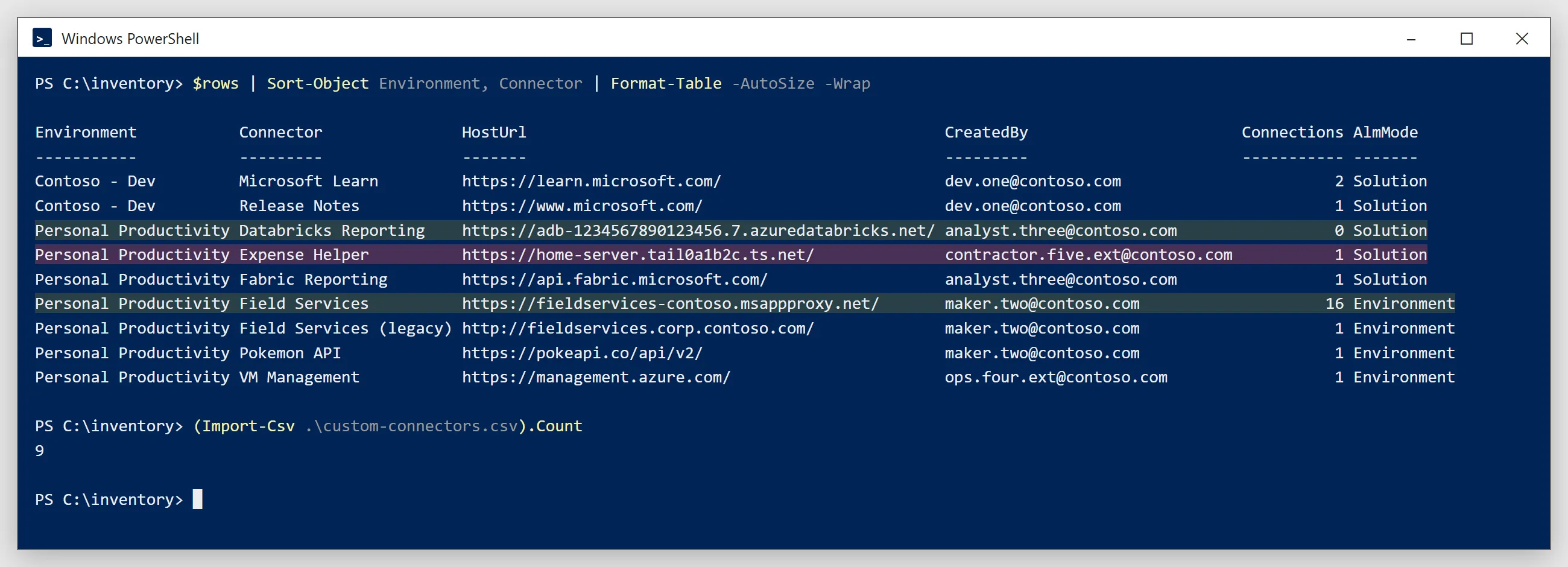
The same data as a table:
| Environment | Connector | HostUrl | CreatedBy | Connections | AlmMode |
|---|---|---|---|---|---|
| Contoso - Dev | Release Notes | https://www.microsoft.com/ | dev.one@contoso.com | 1 | Solution |
| Contoso - Dev | Microsoft Learn | https://learn.microsoft.com/ | dev.one@contoso.com | 2 | Solution |
| Personal Productivity | Field Services | https://fieldservices-contoso.msappproxy.net/ | maker.two@contoso.com | 16 | Environment |
| Personal Productivity | Field Services (legacy) | http://fieldservices.corp.contoso.com/ | maker.two@contoso.com | 1 | Environment |
| Personal Productivity | Fabric Reporting | https://api.fabric.microsoft.com/ | analyst.three@contoso.com | 1 | Solution |
| Personal Productivity | Databricks Reporting | https://adb-1234567890123456.7.azuredatabricks.net/ | analyst.three@contoso.com | 0 | Solution |
| Personal Productivity | VM Management | https://management.azure.com/ | ops.four.ext@contoso.com | 1 | Environment |
| Personal Productivity | Expense Helper | https://home-server.tail0a1b2c.ts.net/ | contractor.five.ext@contoso.com | 1 | Solution |
| Personal Productivity | Pokemon API | https://pokeapi.co/api/v2/ | maker.two@contoso.com | 1 | Environment |
Three things stand out.
Nothing is in production. Every connector sits in a dev environment or in the default environment, renamed Personal Productivity. That's good news for the rollout: no production app breaks when * becomes Blocked, as long as the allowlist is right.
One connector carries most of the usage. Field Services has 16 connections. Everything else has one or two. Whatever happens, that one must keep working.
One connector has no connections. Databricks Reporting exists but nobody has connected to it. That's a question for its owner, not an automatic allow.
How to decide: allow, ask, or block
Every host goes into one of three buckets. Here is how the sample sorts, and why.
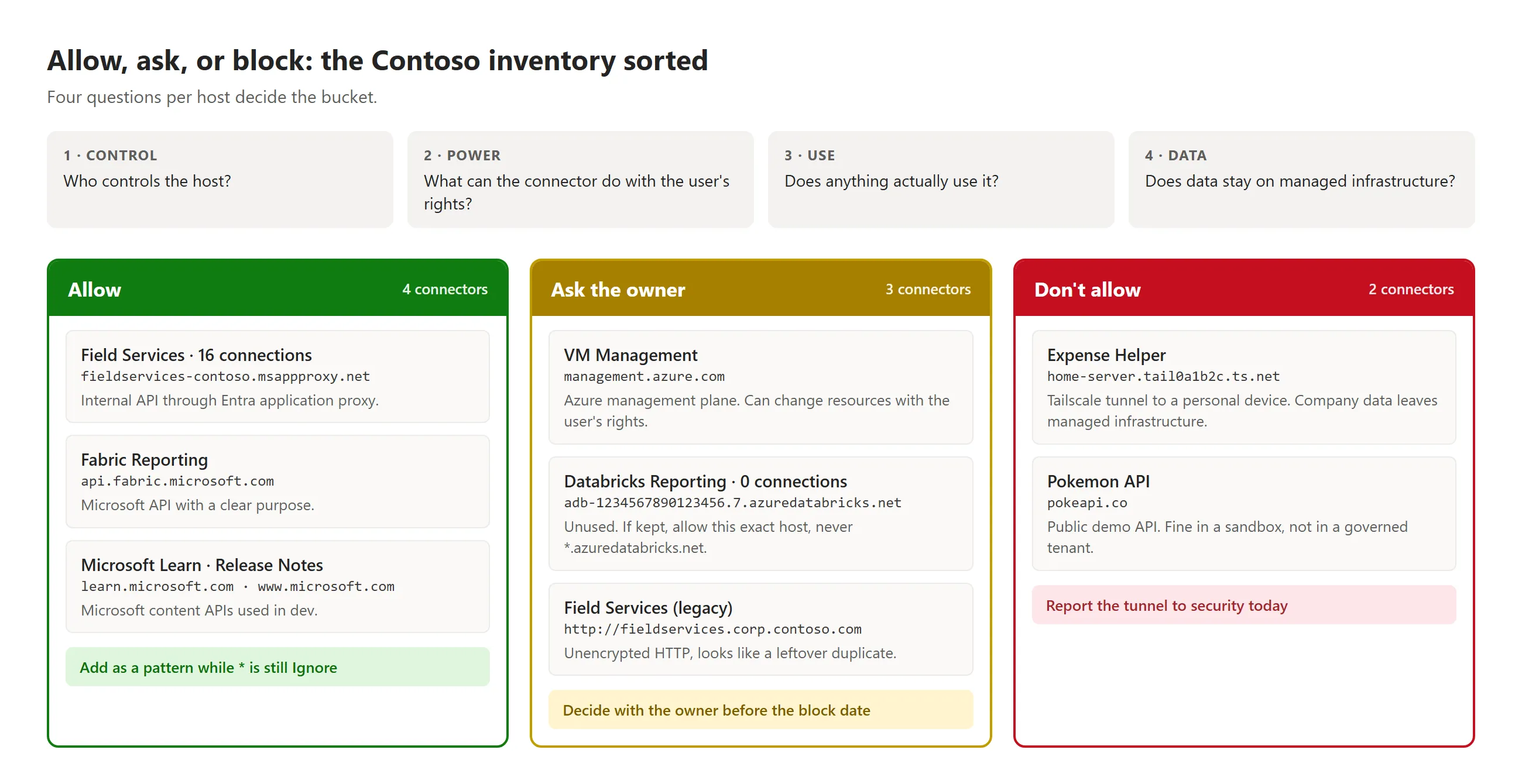
Allow
- Field Services at
fieldservices-contoso.msappproxy.net. An internal API published through Entra application proxy. The host is Contoso's, authentication runs through Entra, and 16 connections depend on it. - Fabric Reporting at
api.fabric.microsoft.comand Microsoft Learn atlearn.microsoft.com. Microsoft APIs with a clear purpose. Release Notes atwww.microsoft.comfits the same category.
Ask the owner first
- VM Management at
management.azure.com. This is the Azure management plane. A connector against it can create, change and delete Azure resources with whatever rights the signed-in user has. It may be legitimate, but someone has to own that decision. - Databricks Reporting with zero connections. Allow it and you carry an unused pattern forever. Ask whether it's still needed. If it is, allow the exact workspace host. Don't widen to
*.azuredatabricks.net, because that pattern would also allow any workspace outside Contoso. - Field Services (legacy) at
http://fieldservices.corp.contoso.com. Unencrypted HTTP, same name as the application proxy version, one connection. It looks like a leftover from before the proxy existed. Confirm that with the owner and let the pattern expire with it.
Don't allow
- Expense Helper at
home-server.tail0a1b2c.ts.net. Ats.nethost is a Tailscale tunnel. This connector sends company data to a device on someone's personal network, outside managed infrastructure. Don't wait for the policy rollout to deal with this. Raise it with security the same day. - Pokemon API at
pokeapi.co. A public demo API. Fine for learning in a sandbox, no place in a governed tenant.
The reasoning transfers to any tenant: ask who controls the host, what the connector can do with the user's rights, whether anything actually uses it, and whether the data stays on infrastructure the organisation manages.
Turning hosts into patterns
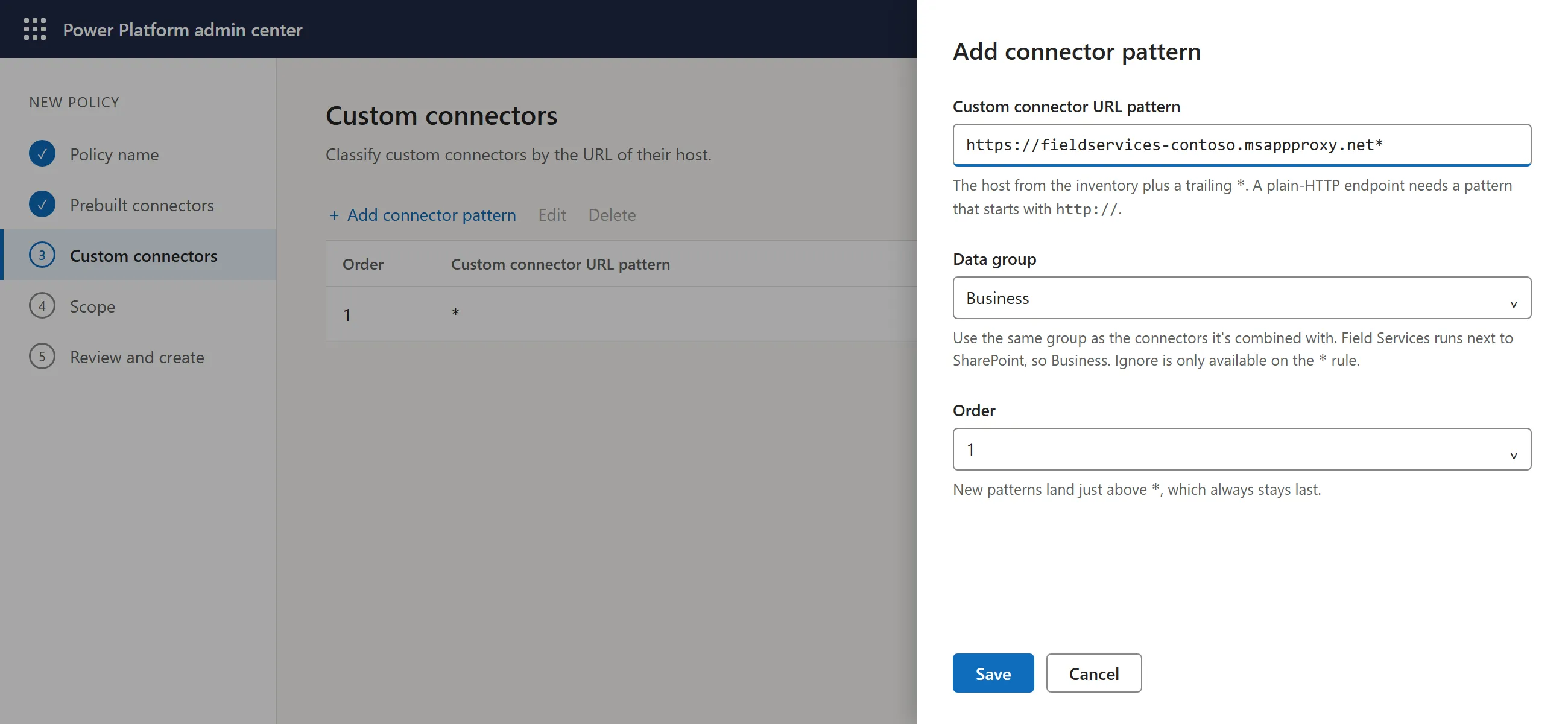
The policy wants URL patterns, not hosts. For Field Services the pattern is:
https://fieldservices-contoso.msappproxy.net*Rules to get right, all from the Microsoft Learn page:
- Scheme matters. A pattern for an HTTP endpoint has to start with
http://. If you decide to allow the legacy connector for a transition period, its pattern ishttp://fieldservices.corp.contoso.com*, not the https version. - Order matters. Rules are evaluated top to bottom and
*is always last. New patterns are added just above*, and you can reorder them with Move up and Move down. - Ignore is only available on
*. Every other pattern is Business, Non-Business or Blocked. - Match the data group. Put each allowed pattern in the same data group as the connectors it's used with. Field Services is used with Business connectors, so the pattern goes in Business. Put it in Non-Business and every flow that combines it with SharePoint breaks.
- Patterns only, at tenant level. If a custom connector was added to the tenant policy by name through PowerShell, that classification overrides the URL patterns. Microsoft recommends using only URL patterns in tenant-level policies, because a connector's name has no meaning outside its environment.
- Policy evaluation runs before "Set host URL". A connector whose host is allowed can still redirect to another API at runtime through that policy template. The data policy can't see it. That's why only trusted makers should build custom connectors, and why the CreatedBy column matters.
Rollout without breaking things
Blocking is one click. Blocking without an outage takes a sequence.
- Agree the three buckets with the organisation. Share the inventory and the proposed classification, and get a written yes (template below).
- Talk to the owners of every connector in the ask and block buckets. Some will move to allow with a good reason, some will be deleted by their owner before you ever block them.
- Add the allow patterns while
*is still Ignore. Nothing changes for anyone at this point, and you can check that the patterns are saved and ordered correctly. - Announce a date, then set
*to Blocked. Give makers time to react and name a contact for problems. - Set up a request process for new endpoints. From now on every new custom connector needs an approved pattern before it works, so there has to be a simple way to ask for one.
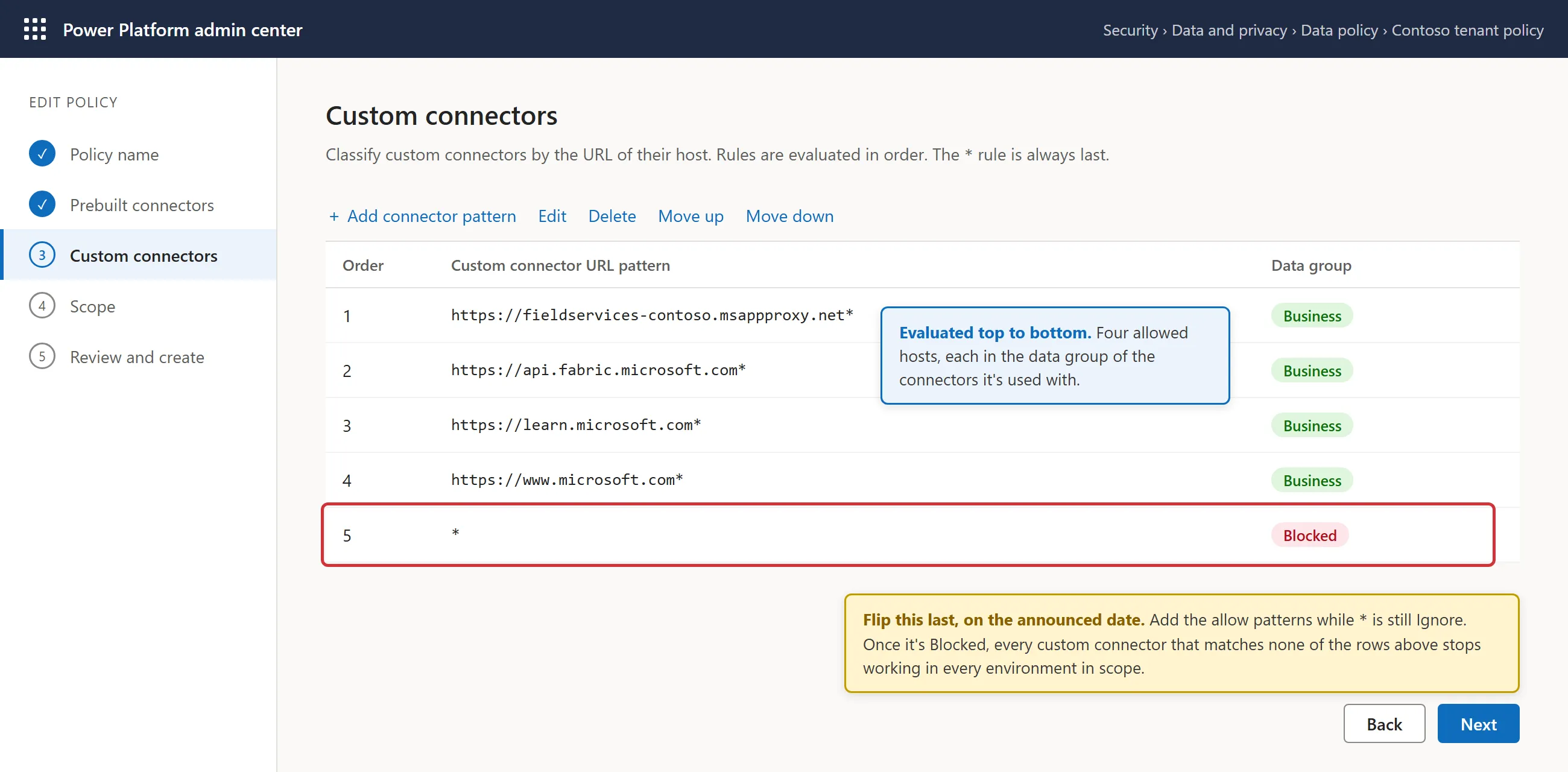
The impact, stated plainly: once * is Blocked, any custom connector whose host does not match a pattern stops working in every environment within the policy's scope. Apps and flows that use it fail. That's the point, and it's also why steps 1 to 4 come before step 5.
Getting approval
Nobody should flip * on their own judgement. This is the email I'd send to the stakeholders, with the CSV attached and no individual names in the body:
Subject: Custom connectors in the Power Platform tenant: inventory and proposed policy

Hi all,

I inventoried the custom connectors in our tenant. Summary:

- 9 custom connectors across 2 environments (Contoso - Dev and Personal Productivity). None in production.
- Today the tenant-level data policy ignores custom connectors, so they can reach any host and mix with Business connectors.

Proposed classification (details in the attached CSV):

- Allow (4): internal APIs published through Entra application proxy and Microsoft APIs with a clear purpose.
- Ask the owner first (3): the Azure management API, an unused Databricks connector and an unencrypted legacy endpoint.
- Don't allow (2): an endpoint on a personal device reached through a tunnel (reported to security separately) and a public demo API.

Next steps:

1. Owners of the "ask" and "don't allow" connectors are contacted this week.
2. Allow patterns are added to the tenant-level policy. No functional change yet.
3. On <date> the catch-all rule is set to Blocked.

Impact: from <date>, any custom connector that does not match an approved pattern stops working in all environments in scope. New custom connectors will need an approved pattern before use. Requests go to <contact>.

Please confirm:

a) the three buckets as proposed,
b) the blocking date,
c) who approves new pattern requests going forward.

Thanks,
<name>
Keep it this short. Decision makers need the counts, the impact and the three letters to answer. The rest is in the CSV.
Inventory first, policy second
Run the inventory before you add a single pattern. The CSV is what makes every later conversation concrete: with owners, with security and with whoever signs off on the block date. Once the module is installed, it takes ten minutes.
And check the module version and the AlmMode column in your own tenant. The behaviour I saw for solution connectors may not be the behaviour you see.
Published