On this page
How to open a specific screen in a Canvas App
Open a canvas app on a specific screen with a URL parameter, for example from an Adaptive Card button that passes a record ID.
Introduction
Ever wanted to open up a specific screen in Canvas Apps? Depending on where or how a user opens the application. I’ll discuss a usecase withAdaptive Cardsthat passes on a record ID.
Canvas App
Adaptive Card
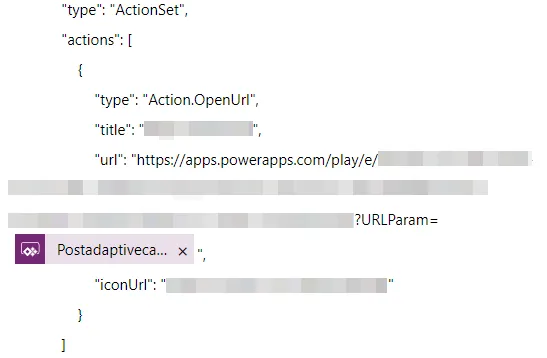
In the ActionSet, the button of the card, you want to put the URL of the Canvas App with a parameter added. Simply do this by adding a question mark, followed by the param (self-defined), an equal sign and the record ID. In this example the record ID will be provided via a Cloud Flow via the Canvas App.
?[Param]=IDValue
Start screen
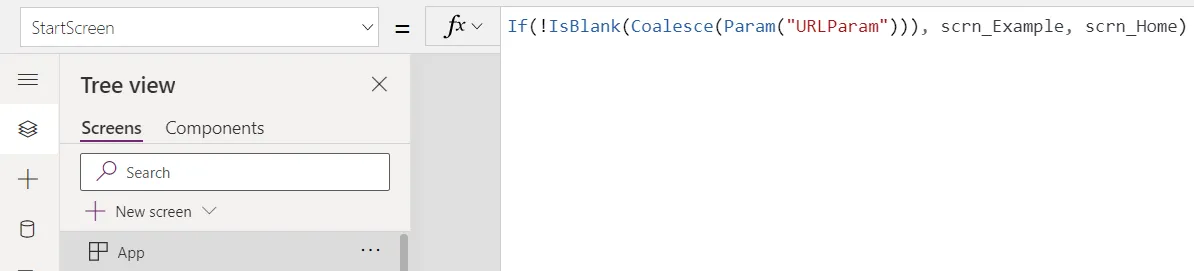
The next thing you need to configure is the StartScreen property in the App.
When the parameter (Coalesce(Param(“URLParam”)) is filled in you want the StartScreen to be the one you want.
However when the parameter is empty, it can be another value; eg. the homescreen.
Record
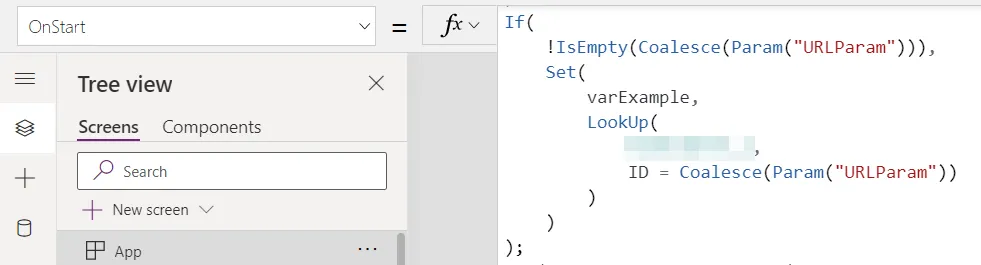
If you also want to show data in the desired screen, provided by the AdaptiveCard, you can do the LookUp in the OnStart. After this, you can use the verExample where necessary.