How to provide additional logging in your Canvas App
Add logging to a canvas app so you can see what happens behind the scenes and spot problems before users report them to support.
Introduction
When developing canvas apps, it’s common to overlook the importance of understanding what’s happening behind the scenes. Often, apps are hastily tested and deployed, with support teams waiting for incoming tickets to address any issues.
However, there is a better approach—one that empowers you to gain full control over your application and even preemptively provide solutions to users before they report any problems. In this blog post, we will explore how to provide additional logging in your canvas app, enabling you to optimize support and deliver a seamless user experience.
By following the step-by-step guidelines outlined in this blog post, you will learn how to:
- Identify essential events and actions: Discover the key events and actions within your canvas app that should be logged. By focusing on critical areas, you can gather specific data that will help you gain valuable insights into user behavior and identify potential pain points.
- Implement logging mechanisms: Learn how to integrate logging mechanisms into your canvas app, ensuring that relevant events and actions are captured accurately. Explore various logging frameworks and techniques, and choose the one that best suits your application’s requirements.
- Analyze logged data: Once your app is equipped with robust logging capabilities, it’s crucial to understand how to effectively analyze the captured data. Explore different analytics tools and techniques that can help you extract meaningful insights and detect patterns that might indicate potential issues.
- Anticipate and resolve user issues: Armed with comprehensive logging data and analytical insights, you can proactively identify and address user issues before they even report them. Discover strategies for leveraging logged data to anticipate common problems, implement preventive measures, and provide proactive support, enhancing user satisfaction.
Implement logging mechanisms
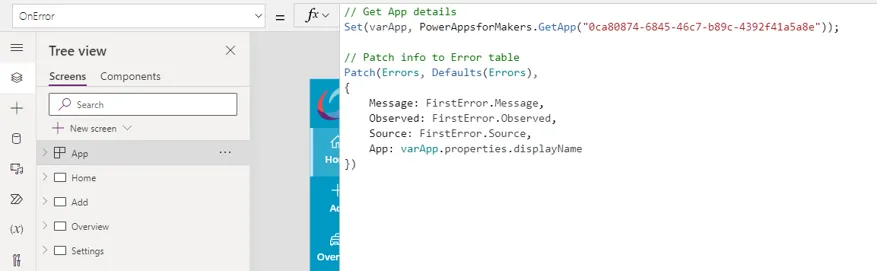
- OnError property
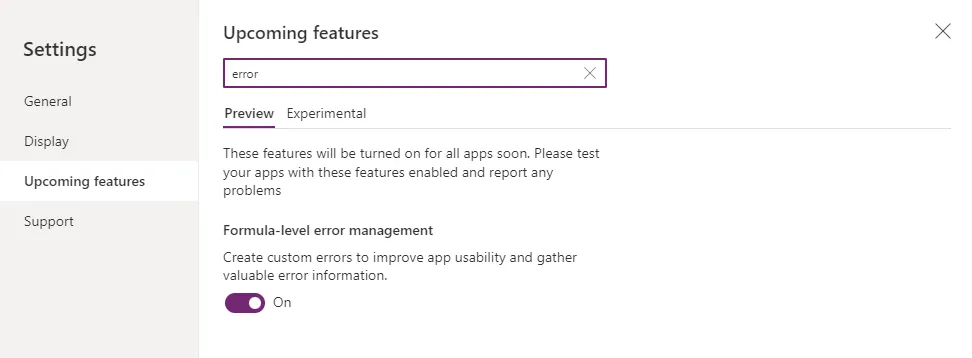
Turn on formula-level error management to use the OnError property in upcoming features since this is still under preview.
- **IfError()**function
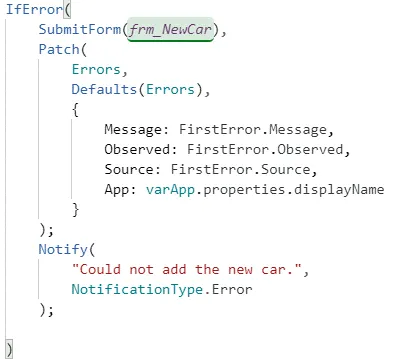
The IfError function tests values until it finds an error. If the function discovers an error, the function evaluates and returns a corresponding replacement value and stops further evaluation. A default value can also be supplied for when no errors are found. The structure of IfError resembles that of the If function: IfError tests for errors, while If tests for true.
- Trace() function
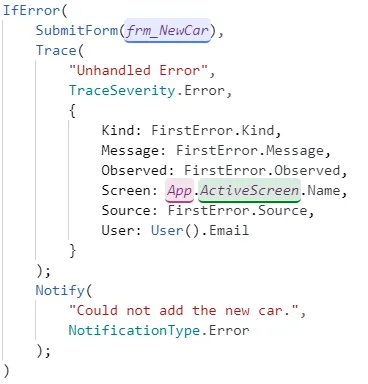
Link to Application Insights
For full reference check this article from Microsoft to the complete setup.
Published , updated