On this page
Extending Your Agent with MCP Server
How the Model Context Protocol (MCP) lets a Copilot Studio agent connect to your own systems and data without building custom connectors.
Introduction
When we design agents, the first big question from clients is always the same: how can it connect to our own systems and data?
Until recently, this meant using (custom) connectors, managing APIs, and dealing with a lot of integration overhead. Now we have the Model Context Protocol (MCP), an open-source standard that changes how agents connect to external systems.
Think of it as the USB-C of AI: a common interface for connecting tools, workflows, and data sources.
What is MCP?
MCP makes it possible for AI agents to plug into external systems in a consistent way. Through MCP, an agent can reach:
- Data sources such as Dataverse, SQL, or SharePoint
- Tools such as search engines or calculators
- Workflows such as Power Automate flows or specialized prompts
This means your agent no longer lives in isolation. It can use standardized connections to pull data, trigger automations, and respond in context.
Why MCP Matters
MCP has benefits for different roles in the ecosystem:
- Developers save time by not reinventing integrations.
- AI applications and agents gain access to a broader ecosystem of tools and data.
- End users get copilots that can act on their behalf, instead of just answering questions.
For consultants, it is a way to deliver more capable copilots with less custom glue code. That makes projects faster to implement and easier to maintain.
Architecture overview
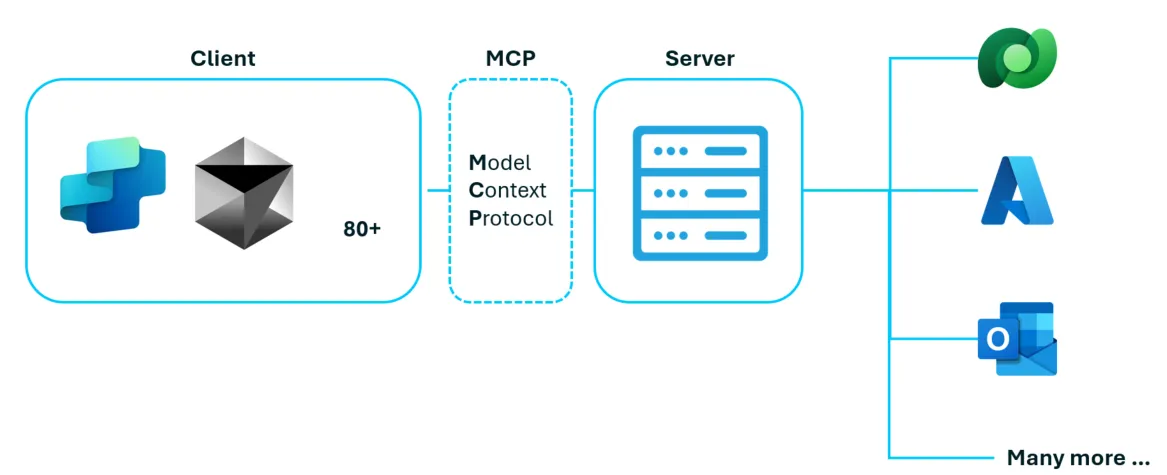
The architecture of MCP can be broken down into three parts. On the client side, you have the agent (for example Copilot Studio) together with the MCP client module. This is where user input is processed, decisions are made, and tool calls are issued. The client doesn’t need to know every system in detail because it can discover available tools dynamically.
In the middle, the Model Context Protocol (MCP) acts as the bridge. It defines a standard way for clients and servers to talk to each other, regardless of the system or transport. MCP makes sure requests, responses, errors, and available tools are described in a consistent way, so agents can connect to new systems without custom code.
On the server side, the MCP server is responsible for exposing real capabilities. It can wrap APIs, databases, or workflows and present them to the client as standardized tools and resources. The server handles authentication, security, and the translation between the client’s generic requests and the specific backend system. With multiple servers in place, the same agent can seamlessly connect to many different applications through one consistent protocol.
Link in Agent
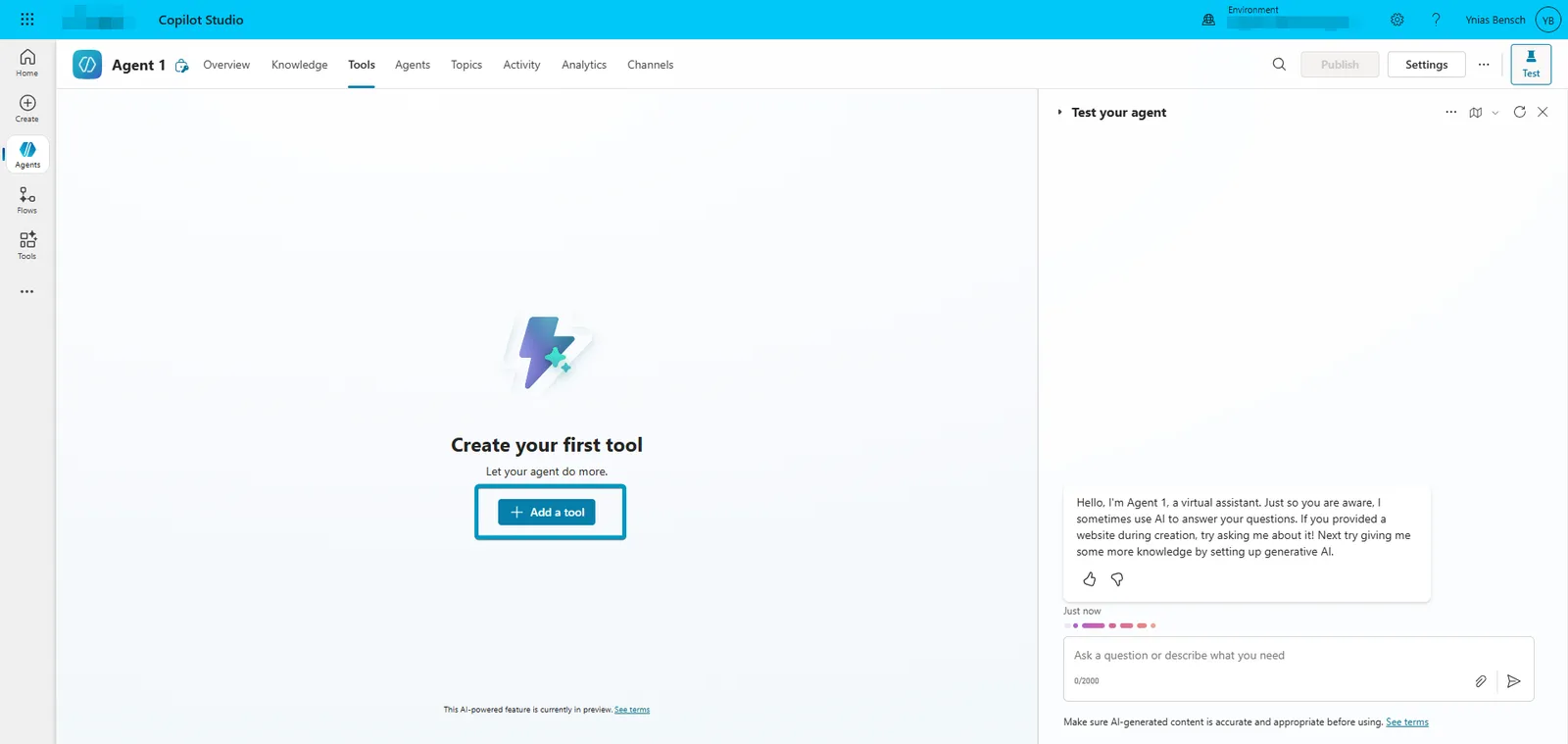
- In your agent go to tools and add a tool.
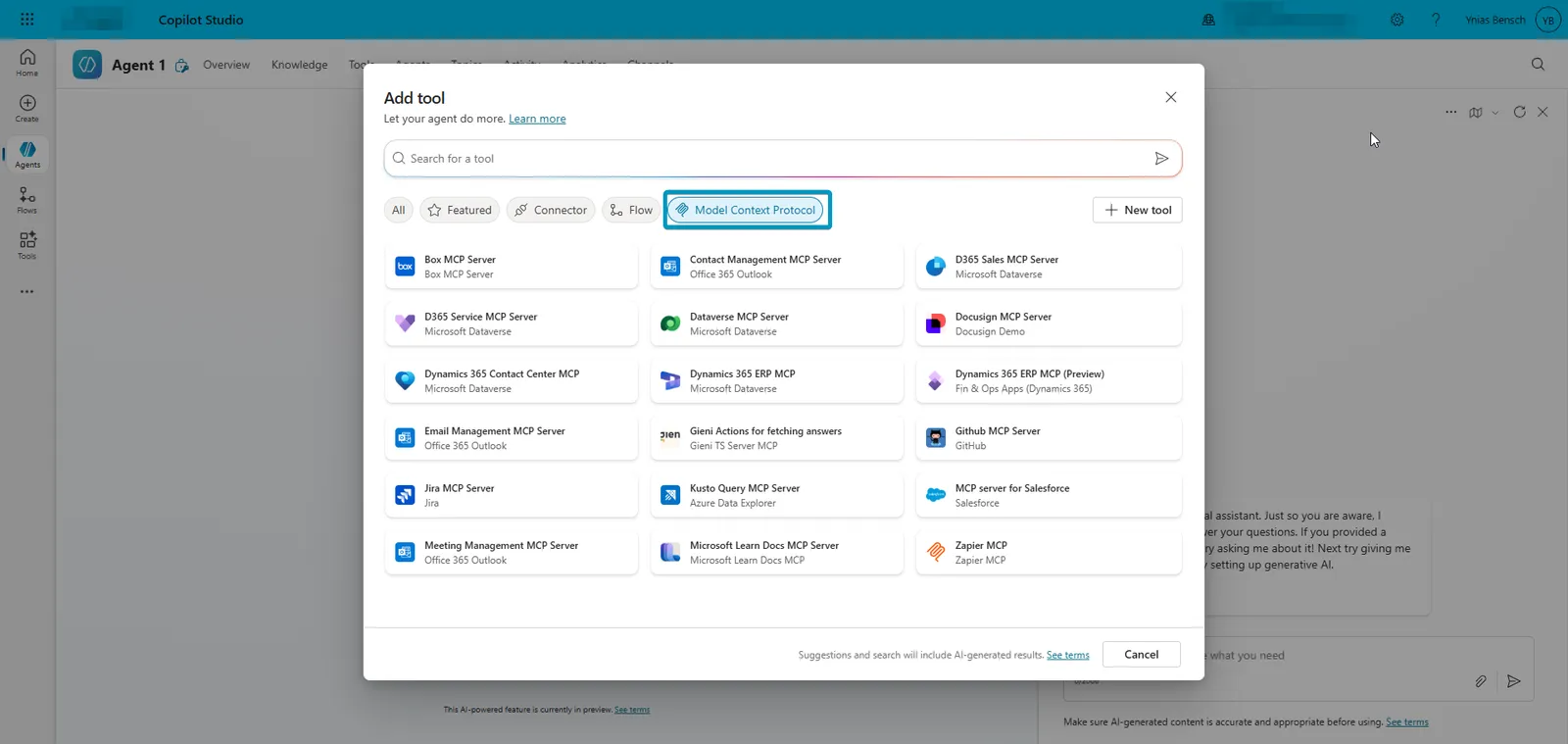
- Navigate to Model Context Protocol. Here you can add existing ones or add a custom build one.
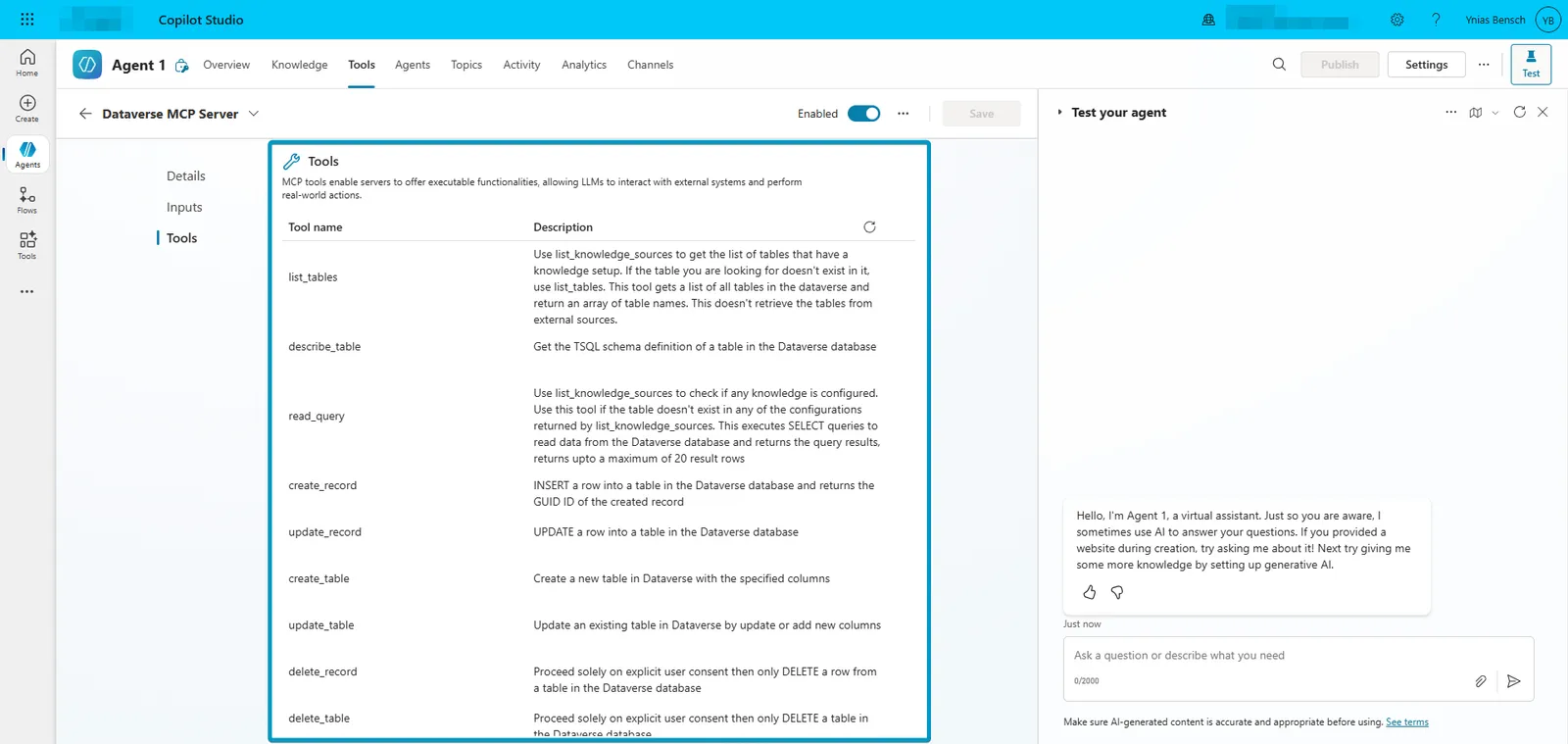
- Once you connected the MCP server, you can open it for more detaiils and see all the available tools.
Useful links
- MCP Setup and link to an Agent tutorial
- This lab introduces MCP concepts and shows how to integrate them with an Agent
- MCP Example clients
- MCP Example servers