How I Moved My WordPress Blog to Astro and Netlify with an AI Coding Agent
How I moved benschmark.eu from WordPress to a static Astro site on Netlify, designed in an AI chat and built phase by phase by a coding agent.
Key takeaways
- On a phone, my WordPress blog needed more than 10 seconds to show its main content. The new site needs about 1 second and scores 100 in every Lighthouse category.
- Running the site went from about €227 a year to €14.99. Only the domain is left to pay for.
- No plugins, no PHP and no database to keep updated. Every post is a file in Git, so every change has a history and can be undone.
- I wrote no code. The design came out of an AI chat and a coding agent built the site in nine phases, in about four hours of my own time.
- You can repeat it: the prompts, the plan, the costs and the six things that went wrong are all in this guide.
- The catch: every save in the CMS is a Git commit and a deploy. It suits a blog, not every site.
This blog ran on WordPress. It worked, but it was slow, it was heavy, and every year I paid for hosting and add-ons I didn't really need. In early October 2026 I moved it to a static site built with Astro, hosted on Netlify, with a Git-based CMS for writing.
I didn't write the code myself. I designed the site in an AI chat and let a coding agent build it, one phase at a time, while I reviewed and approved each step. I used Claude for both, but the method isn't tied to one tool: what made it work was a plan with phases and gates. My own time was about four hours. The sessions ran over an evening and most of the next day, about nine hours from start to finish, but for most of that the agent was working and I only came back to answer questions, review and approve. It helped that I already knew Git.
In this article I'll show you exactly how, so you can do the same:
- Why I moved, with the numbers before and after
- How it started: a scan, options and a design, before any code
- The architecture
- The setup and the way of working, step by step
- The prompts I used and why they worked
- The migration, the launch and the costs
- The trade-offs, and what went wrong
Most of my readers build with Power Platform, not with web frameworks. That's fine. You don't need to know Astro to follow this. You do need to know some Git, so if branches and pull requests are still vague, read Git Explained first.
Why I moved
I asked the AI assistant to scan the old site before anything else. The result was not flattering:
- WordPress with Elementor and the Soledad magazine theme: a lot of code for a blog with 23 posts.
- The homepage title was "Homepage - Benschmark".
- Meta descriptions were scraped from the first lines of the post, or missing.
- No share image, so links on LinkedIn showed up bare.
- Dated URLs like
/2025/09/12/post-name/, and one post with the slugelementor-1807. - The same posts repeated in several sidebar blocks, and twelve related posts under every article.
The speed was worse than I thought. I measured the old site with PageSpeed Insights (Lighthouse 13.5) before the build started. After launch I ran Lighthouse 13.5 again, on mobile, against the same two pages on the live site. The article is my ALM with Azure DevOps post in both cases.
Before and after: speed on a phone
| Measured on mobile | WordPress (before) | Astro on Netlify (after) |
|---|---|---|
| Performance, home | 59 | 100 |
| Performance, article | 52 | 100 |
| Accessibility, home | 92 | 100 |
| Accessibility, article | 84 | 100 |
| SEO, home | 92 | 100 |
| SEO, article | 100 | 100 |
| Best practices, both pages | 100 | 100 |
| Main content visible (LCP), home | 10.9 s | 0.9 s |
| Main content visible (LCP), article | 10.3 s | 0.9 to 1.0 s |
| Layout shift (CLS), article | 0.159 | 0 |
LCP is the time until the biggest element on the page is visible. CLS measures how much the page jumps around while it loads. Three runs on the new site gave the same scores every time.
Two caveats. These are lab tests on a simulated slow phone, not measurements from real visitors: Google had no field data for my site. And WordPress can be made a lot faster than mine was, with caching, a lighter theme and optimised images. I chose to move instead of tune, because I wanted a redesign anyway and didn't want to keep paying for hosting.
On desktop WordPress was fine (91 and 93). Most of the damage happened on mobile: render-blocking CSS and JavaScript, a lot of unused code, and images that weren't optimised.
Before and after: the site itself
| What | WordPress (before) | Astro on Netlify (after) |
|---|---|---|
| Cost per year | about €227 (hosting, add-on and domain) | €14.99 (domain only) |
| What runs the site | WordPress, Elementor and the Soledad theme on PHP | static HTML files on a CDN |
| Where the content lives | a database at the host | Markdoc files in my own Git repository |
| Post URLs | /2025/09/12/post-name/, and one elementor-1807 | /blog/post-name/, with a 301 from all 156 old URLs |
| Meta descriptions | scraped from the post, or missing | written per post, 70 to 160 characters |
| Share image | none | one per post, generated during the build |
| Around the article | repeated sidebar blocks and twelve related posts | a contents rail, key takeaways and one previous article |
| Checking a change before it goes live | not part of my setup | a preview link for every pull request |
The full cost breakdown is in the Costs section further down.
Is this for you?
Before you read on, a quick check. This approach fits you if:
- Your site is mostly articles: text, code, screenshots.
- You don't depend on WordPress plugins for forms, shops, memberships or bookings.
- You're comfortable with Git, or willing to learn the basics.
- You publish a few times a month, not a few times a day.
If most of these are a "no", stay on WordPress and fix the theme and caching instead. I come back to this at the end.
A few words you'll meet
| Term | In plain words |
|---|---|
| Static site | Pages built once into plain HTML files. No database or server code runs when someone visits. |
| CDN | A network of servers that keeps copies of those files close to the visitor. |
| Git-based CMS | An editor like the one in WordPress, but it saves posts as files in a Git repository instead of a database. |
| Deploy preview | A temporary copy of the site built from a pull request, with its own link. |
| 301 redirect | "This page has moved permanently": browsers and search engines are sent on to the new address. |
| DNS records | The settings at your domain registrar that say which server answers for your domain. An A record points to an IP address, a CNAME to another name. |
| Environment variable | A setting stored at the host instead of in the code, such as an ID or a secret. |
Stage 1: the design was finished before any code was written
The first part happened in a normal AI chat, not in a coding tool. No repository and no code yet: only a conversation and a design canvas.
The opening prompt
The opening prompt, with the must-haves up front and a clear stop before any design work:
I own and manage https://www.benschmark.eu, a technical blog about
Power Platform. I want to redesign and rebuild it with your help.

Must-haves:
* A CMS, so I can write without touching code
* SEO: clean URLs, proper meta data, fast pages
* SEA: ready for Google Ads
* Responsive
* Reading first: the design serves the article, nothing competes with it

Start with a scan of the current site: platform, speed, SEO problems
and anything that hurts readability. Then give me the platform options
as questions I can choose from, with the trade-offs of each.

Don't design or build anything yet. Once I've chosen, we write a plan
and then start designing.
The assistant scanned the live site (the findings above) and came back with options as multiple-choice questions. For the platform I picked Astro with a Git-based CMS, which became Astro and Keystatic on Netlify. For SEA (search engine advertising) I picked running Google Ads to grow readership. I dropped Ads later, together with the newsletter and comments, when I realised I didn't want to maintain them.
Three directions, built from my own content
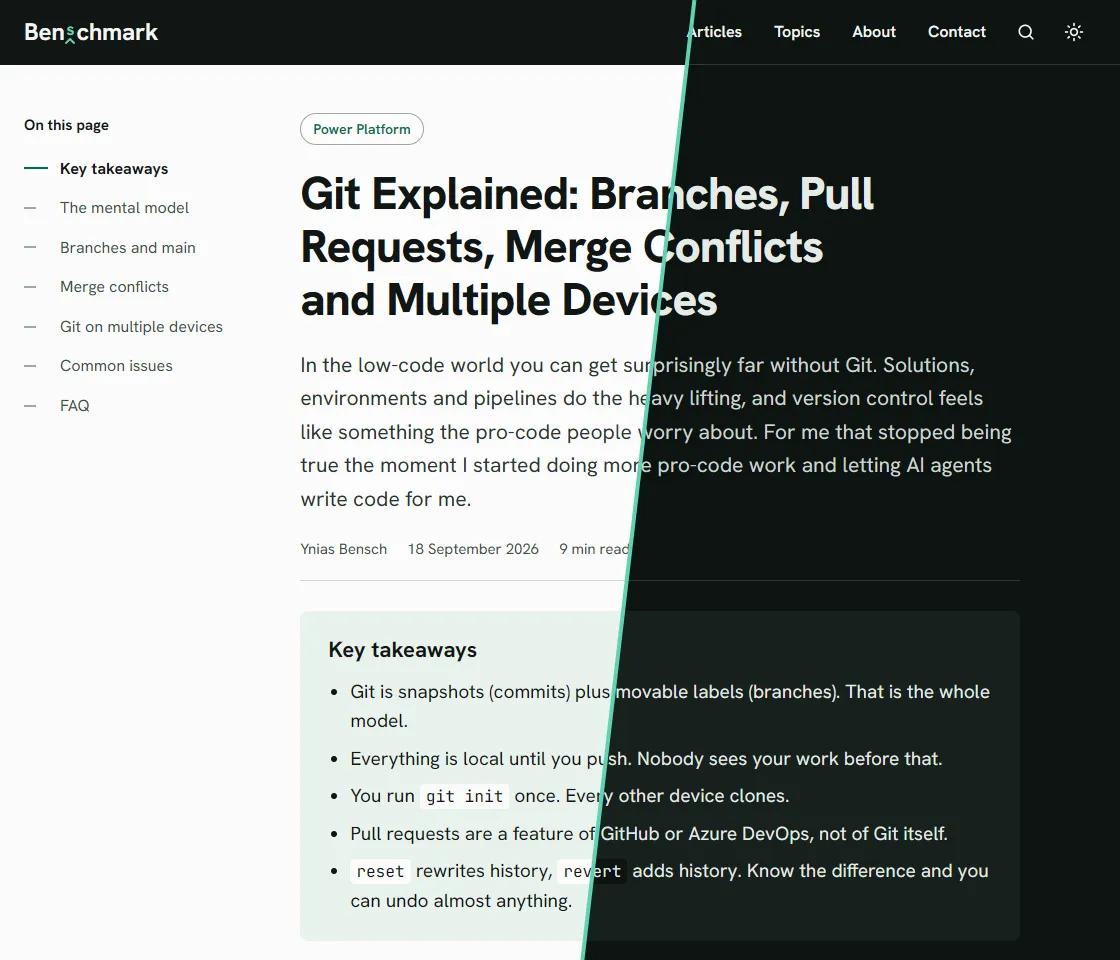
Next, the assistant built three directions for the article page on a design canvas. Not with lorem ipsum, but with the real text of my Git post. That made a big difference: I could judge readability on content I know, with real headings, code blocks and tables.
My feedback named what to keep and what to change:
Direction "Manual" is the closest. One problem: it screams AI. These are the fonts and colours every generated site has, and this should look like my own site. Keep the "On this page" rail, the tags, the navigation, the key takeaways box and the copy button on code blocks. Change everything that makes it recognisable as generated, starting with the fonts and the palette.
That one changed a lot: new fonts and new colours, while the parts I liked stayed. The next round:
Give me three colour options for this direction, each with a light and a dark theme, in modern colours like the previous example. For the name: don't build the logo around a mark. "Benschmark" is a play on my name, Bensch, and the word benchmark. The wordmark should make that joke visible.
From those three I picked Spruce: a dark green accent on an off-white background, with a matching dark theme. The logo became the word "Benchmark" with a small "s" inserted by a proofreader's caret. Then I asked:
I'm going with Spruce. Before we continue, check both themes for readability: contrast of body text, links and code, line length and font sizes. Tell me what fails and what you would change.
The assistant checked the contrast and tightened four things: a narrower text column (680px), bigger code (16px), a lighter body text colour in dark mode, and a contents rail that collapses into an "On this page" toggle on small screens.
The last design prompt widened the scope of the site:
The site will also cover Azure, AI and related topics, not only Power Platform, so the headline and the topic structure need to change. I also want the homepage to follow best practice for a personal technical blog, with a photo of me or another visual. Propose a layout and tell me what you need from me to finish it.
The build kit
The chat ended with a build kit for the coding agent:
BUILD_PLAN.md: fixed decisions, open questions, rules, the content model and nine phases (0 to 8). Every phase ends with a gate, a list of checks that must pass, and exactly one commit. After each gate the agent stops and waits for my approval.design-reference/: the colour tokens for both themes and six reference pages (home, articles list and article, each in light and dark).
I unzipped the kit into an empty private GitHub repository. That was the starting point for stage 2. Every design decision was already made, so the build was about execution, not taste.
The plan is the most reusable part of this project, so I've put a cleaned-up version online: BUILD_PLAN template. Replace the parts in brackets with your own site and decisions. The easiest way is to give the file to your AI assistant at the end of your own design chat and ask it to fill it in.
This is what one phase looks like in the plan. Short tasks, and a gate that can only pass or fail:
### Phase 5: SEO layer

- Per page: title template, meta description, canonical, Open Graph and
  Twitter tags, a generated share image per post.
- Structured data: BlogPosting and BreadcrumbList on articles, FAQPage
  where `faq` exists, Person on About.
- `sitemap.xml`, `rss.xml`, `robots.txt`.
- Redirects generated from `migration/url-map.csv` into Netlify's
  redirect format.

**Gate:** a script requests every old URL against the preview and gets a
301 to a page that returns 200. Zero 404s. The Rich Results test passes
for one article. Lighthouse SEO is 100.
The architecture
Here is how the new site works, from writing a post to a visitor reading it.
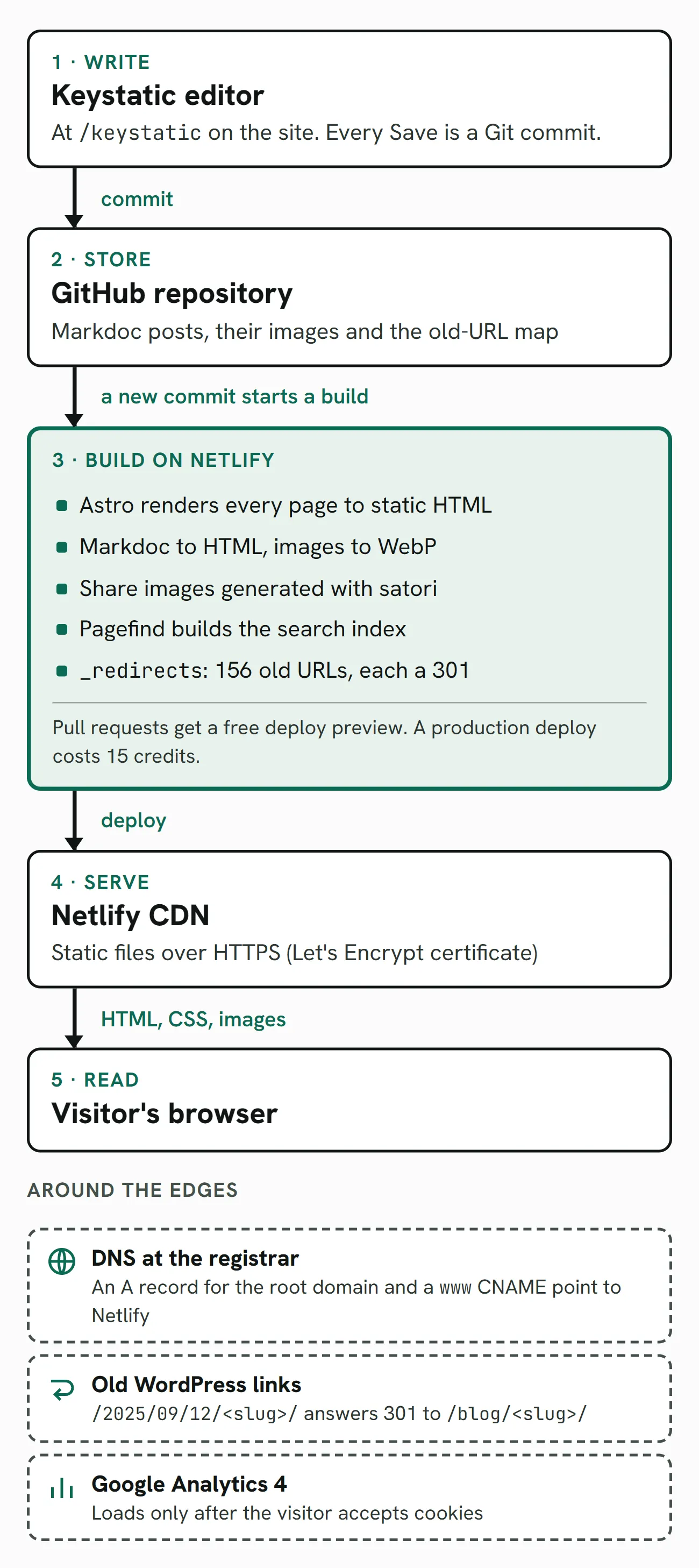
The key idea: there is no database and no PHP. Every page is built once, as plain HTML, and served from Netlify's CDN. The only server code is the Keystatic editor and its login, which run on Netlify Functions at /keystatic and /api/keystatic.
The setup
This is the list of what you need, not a click-by-click manual. The agent walked me through the account steps (Netlify, the GitHub App, DNS) when we got to them, and it will do the same for you.
What you need
Accounts:
- An AI assistant with a coding agent: the design happens in a chat, the build in the agent. I used Claude for the chat and Claude Code for the build, on a Max 5x subscription. Other assistants and agents that can work in a Git repository should fit the same plan; I haven't tried them.
- GitHub: free, with a private repository.
- Netlify: the free plan.
- Your domain registrar: access to the DNS settings. Mine is One.com.
- Google Search Console, and optionally Google Analytics 4.
- WordPress admin: to download the export file (Tools > Export) and the uploads folder.
Tools on your machine:
- Node.js 22.12 or newer, and Git.
- The coding agent, with the GitHub CLI and a Netlify connector, so it can open pull requests and read deploy status itself.
The stack and why
| Part | Choice | Why |
|---|---|---|
| Framework | Astro | Builds every page to static HTML and ships almost no JavaScript. |
| Content | Markdoc files in Git | One folder per post, with its images next to it. Readable, portable, versioned. |
| CMS | Keystatic | Git-based: no database. An editor at /keystatic that commits to GitHub. |
| Hosting | Netlify | Free plan, a deploy preview per pull request, a simple redirects file. |
| Search | Pagefind | A static search index, built at deploy time. No server, no external service. |
| Share images | satori and resvg | A share image per post, generated during the build. |
| Fonts | Hanken Grotesk and JetBrains Mono, self-hosted | No requests to Google Fonts, which is better for privacy and speed. |
| Analytics | GA4 with Consent Mode v2 | Loads only after the visitor accepts. Nothing from Google before that. |
The way of working: phases and gates
This is the part I would copy first, even if you choose a different stack. The build plan had nine phases:
| Phase | What was built | The gate |
|---|---|---|
| 0. Inventory | URL map, speed baseline | Every old URL has exactly one target, and the post count matches the export. |
| 1. Skeleton | Astro project, design tokens, theme toggle, header, footer | Preview works in both themes, the toggle persists, no third-party requests. |
| 2. Templates | Home, articles, article, topics, about, contact, privacy, 404 | Side by side with the reference pages at 1280px and 390px in both themes. Keyboard reaches every control. Lighthouse accessibility 100. |
| 3. CMS | Keystatic with the post schema | I create a test post in /keystatic with an image, a code block and a table, without touching code. |
| 4. Migration | All posts converted | A checklist with one line per post: text complete, images present, code intact, links working. |
| 5. SEO | Meta tags, structured data, sitemap, RSS, redirects | A script requests every old URL and gets a 301 to a page that returns 200. |
| 6. Consent | Cookie banner and GA4 | With consent refused, no request goes to Google. |
| 7. Pre-launch | Final checks | Everything listed with its result in a pre-launch report. |
| 8. Launch | Domain, DNS, Search Console | I do the steps, the agent assists and verifies. |
For every phase the rhythm was the same:
- The agent works on a branch named after the phase.
- It opens a pull request. Netlify builds a deploy preview for it, with its own link.
- The agent runs the gate checks against that preview and reports what passed and how it verified it.
- I open the preview, look at it, and approve.
- The pull request is squash-merged, so
maingets exactly one commit per phase.
The result is a Git history you can read like a project log:
phase-0: URL map, gate check and PageSpeed baseline
phase-1: Astro skeleton, Spruce tokens, theme toggle, header and footer
phase-2: templates for home, articles, article, topics, about, contact, privacy, 404
phase-3: Keystatic CMS with post schema and site singleton
phase-4: migrate 23 posts and 2 content pages from WordPress
phase-5: SEO layer, redirects, test posts removed
phase-6: consent banner and GA4 (newsletter, comments and Ads dropped)
phase-7: pre-launch check
phase-8: launch on www.benschmark.eu
The gates are what made this work. "It builds" is not a gate. "Every old URL answers with a 301 to a page that returns 200" is.
If you know Power Platform ALM, you already know this
None of this is new if you've set up pipelines for solutions:
| Power Platform ALM | This project |
|---|---|
| Solution in source control | The repository |
| Work in a development environment | A branch per phase |
| Test environment | The deploy preview of the pull request |
| Approval before the production stage of a pipeline | The gate, and my approval |
| Production environment | main, deployed to the live site |
The difference is who does what. The agent was the developer and the tester, and I was the approver. My review was the preview and the gate report, not every line of the diff. That is a trade-off, and it's why the gates had to be things that can be measured.
The prompts
Stage 2 started with two sentences
With the build kit in the repository, the first prompt to the agent was:
Execute BUILD_PLAN.md. Start with phase 0, stop at the gate and wait
for my approval.
That's it. Everything else was in BUILD_PLAN.md. The agent read the plan, asked for the WordPress export, and started phase 0.
The prompts per phase
Most of my prompts after that were short approvals like "Approved, merge and continue with the next phase". The ones that did more than approve:
- Getting unblocked: "Before you continue, list every question you still have for me. For each one, tell me where to put the answer or the file."
- Delegating a choice: "Propose the homepage headline yourself. Look at how well-known technical blogs in my field position themselves, give me the option you'd pick and say why."
- When I was stuck on the CMS login: "Step 1 fails, the error output is below. Walk me through the steps one at a time and wait for my result after each one."
- Changing scope in phase 6: "Scope change: no newsletter and no comments. Update the plan to match. For analytics, tell me which IDs you need, where I find them and where to store them."
- Starting the launch: "Goal: the new site live on benschmark.eu through Netlify, so I can cancel the hosting at One.com and keep only the domain there. Is that possible? If so, give me the steps in order and mark the ones I have to do myself."
Notice what's missing: no long technical instructions. The plan carried those.
Why they worked
- Must-haves up front. The opening prompt listed what the site had to do before asking for anything. Every option I was offered was measured against that list.
- A stop sign. "Don't design or build anything yet" kept the first answer to a scan and a set of choices, instead of a finished design I hadn't asked for.
- Real content in the designs. Designing with my own Git post meant I judged the real thing: long headings, code blocks, tables.
- Feedback that names things. "It screams AI" alone isn't something to act on. A list of what to keep and what to change is.
- One step at a time. When I was stuck, asking for one step and then reporting the result worked better than asking for the whole procedure.
- Rules in the plan. The plan had a short list of rules for every phase (shortened here), and the agent kept to them all the way through:
- Never change DNS, never touch the live WordPress site, never push to
  the production branch without an approved gate.
- No secrets in the repo. Use .env locally and Netlify environment
  variables in production.
- Test content is prefixed TEST_ in the title and test_ in the slug,
  so it can be found and removed.
- Verify in the real state: run the build, open the preview, check the
  output. A passing type check is not a verified gate.
- One commit per phase.- One phase at a time. The agent stopped after every gate. I could change course between phases, and I did: the newsletter, comments and Google Ads were all dropped halfway.
- Ask, don't guess. The plan had a list of open decisions with the instruction "ask Ynias, do not guess". The GA4 ID and the portrait were asked for, never invented. The headline I left to the assistant on purpose.
What I did myself
The agent did the code, the checks and the pull requests. These steps were mine:
- Downloading the WordPress export and providing a portrait.
- Linking the GitHub repository in Netlify and setting deploy previews to public.
- Creating the GitHub App that Keystatic uses for login, and adding its environment variables in Netlify.
- Creating the test post in the CMS, and running Google's Rich Results Test.
- Creating the GA4 property and setting it up for privacy.
- Everything with DNS, Search Console and the old hosting.
- Approving every merge.
The migration
Phase 0 started with the WordPress export file (WXR). The agent read it and built url-map.csv: every public URL of the old site with its new target. Posts, pages, categories, the author page, the feed and the old sitemap: 156 URLs in total. The gate checked that every URL had exactly one target and that the 23 published posts in the export were all in the map.
In phase 4 a conversion script turned every post into a Markdoc file with its own folder:
- 23 posts and 2 pages converted.
- 64 images downloaded and stored next to their post. Astro converts them to WebP during the build.
- 60 code blocks, each with a language label.
- Key takeaways and FAQ sections moved into their own fields, so they render as a box and as FAQ structured data.
- 21 descriptions and 52 alt texts written during the migration, and marked for me to review.
Then a review script compared every new post with its original and wrote a checklist: share of words found (99.7% to 100% on every post), images present, code blocks identical, internal and external links working. All 25 passed.
The script flagged what it couldn't fix by itself. Things that needed my eyes:
- Two literal
[IMAGE: ...]placeholders in my Git post that I never replaced. Removed. - Leftover page-builder filler text ("Click edit button to change this text. Lorem ipsum...") in an old post. Removed.
- A stray line from copying an answer out of a chat tool. Removed.
- In-body tables of contents, now replaced by the contents rail.
- Two dead external links: one replaced with the new address, one removed with its text kept.
- Comments: the export held no approved comments, only spam. None were migrated, and I decided not to add comments to the new site.
The redirects are generated from the URL map during every build, into Netlify's _redirects file. A check script requests all 156 old URLs and expects a 301 to a page that returns 200. It passed on the preview, on production, and again on the live domain.
The launch
Phase 8 was mostly me clicking, with the agent telling me what to click and checking the result after each step.
- Add the custom domain in Netlify. I made
www.benschmark.euthe primary domain, withbenschmark.euredirecting to it. - Point DNS at the registrar. At One.com: an A record for
benschmark.euto75.2.60.5(Netlify's load balancer), and a CNAME forwwwto the Netlify site address. Use the values Netlify shows you in its domain settings, not mine: they can change. I deleted the old AAAA records and left the mail records alone. - Wait for the certificate. Netlify requests a Let's Encrypt certificate once DNS is verified. This took a few minutes.
- Update the CMS login. The GitHub App needs the callback URL on the real domain, or logging in to
/keystaticstops working. - Search Console. I created a new Domain property (verified with a TXT record) and submitted the sitemap.
- Re-run the redirect check against the live domain: 156 of 156.
- Downgrade the old hosting to domain only. One.com only allows that when there is no mailbox left, so I removed one I wasn't using.
The plan said to keep WordPress running, unpointed, for two weeks as a fallback. I downgraded on launch day instead, after checking that everything worked. That was my choice, and it means there is no way back to the old site now. If you're less sure, keep the fallback.
What I can't show yet is the effect on search traffic. The redirects are in place and verified, but this article was written on launch day. The plan has a weekly Search Console check for four weeks, and I'll add the outcome here when it's done.
Writing a post now
This is the part that changes most compared with WordPress, so here is what publishing looks like today:
- Open
/keystaticon the site and sign in with GitHub. - Pick or create a branch in Keystatic's branch menu. Not
main: see the first problem further down. - Create a post and fill in the fields: title, description (70 to 160 characters), date, topic, tags, key takeaways, FAQ and an optional share image.
- Write in the editor. Images you add are stored in the post's own folder, next to the text.
- Save. That's a commit on your branch. A post marked as draft is never published.
- Open a pull request. Netlify builds a preview with its own link, for free.
- Merge when it looks right. That's one production deploy, 15 credits.
You can also skip the editor. A post is a plain .mdoc file, so you can write it in any text editor, or let a coding agent draft it on a branch and open the pull request. That's how this article was made.
Costs
Before and after, per year:
| Cost | WordPress on One.com | Astro on Netlify |
|---|---|---|
| Hosting | €125.68 (Beginner package, 12 months, including the .eu domain) | €0 (Netlify free plan) |
| Add-ons | €101.52 (PHP Extended Support, €8.46 a month) | none |
| Domain | included above | €14.99 (.eu renewal at One.com) |
| Total | about €227 | €14.99 |
What the domain costs
The domain is the only bill left, so the extension you own decides your yearly total. Renewal prices at One.com, per year:
| Domain | Renewal per year |
|---|---|
| .eu (mine) | €14.99 |
| .be | €25.99 |
| .com | €26.99 |
Check the renewal price, not the first-year offer: the first year is often sold for much less.
What is and isn't counted
The amounts are as invoiced by One.com. GitHub, Keystatic, Search Console and GA4 are free. Two things make the comparison look better than it is:
- The PHP add-on. €101.52 of the old total is an add-on that has been on my bill since February 2026, counted here for a full year. Without it the comparison is €125.68 against €14.99.
- The AI subscription. Mine is not counted, because I already had it. If you don't have one, add the months you need to your own sum. Don't do this for the money alone.
Netlify's free plan in concrete terms
Netlify's free plan works with credits. As of October 2026:
- You get 300 credits per month.
- A production deploy costs 15 credits. That's every merge to
mainand every save in the CMS onmain. - Deploy previews and branch deploys cost nothing. Review as much as you like.
- Bandwidth costs 20 credits per GB and requests cost 2 credits per 10,000. My pages weigh about 80 to 380 KB, which works out at roughly 7 credits per 1,000 page views.
- The 300 credits are a hard cap. When they run out, Netlify takes your sites offline until the next month.
So the real limit is deploys. With 8 deploys in a month (120 credits) there's room for about 24,000 page views. About 20 saves or merges in one month and you're out. The Personal plan, $9 a month for 1,000 credits, is the next step if you need it.
One cheap trick: don't deploy for changes that don't touch the site. My repository also holds the build plan and the migration reports, all Markdown files. This line in netlify.toml tells Netlify to skip the build when only .md files changed:
[build]
  command = "npm run build"
  publish = "dist"
  # Skip the build (and the 15-credit production deploy) when only Markdown docs changed,
  # e.g. BUILD_PLAN.md or migration/*.md. Posts are .mdoc, so CMS saves still deploy.
  ignore = "git diff --quiet $CACHED_COMMIT_REF $COMMIT_REF -- . ':(exclude)*.md'"
Benefits and trade-offs
What is better
The two tables at the top cover speed, cost and SEO basics. On top of those:
- Less to maintain. No WordPress, plugin or PHP updates.
- Everything is in Git. Every change has a history and can be undone. My content isn't locked in a database.
- Previews before production. Every change gets its own link to check first.
- Privacy by default. No third-party request before consent, fonts self-hosted.
What is harder
- No plugins. A contact form, comments, a newsletter, a shop: each one is something to build or connect yourself. I dropped three features partly for that reason.
- A save is a commit. Keystatic feels like a CMS, but every save is a Git commit, and on
mainevery save is a production deploy that costs 15 credits. Write and fix typos in one go, not in ten saves. - The credit cap. A busy month of edits, or a post that goes viral, can take the site offline on the free plan.
- You own the plumbing. DNS, the GitHub App for the CMS login, environment variables, certificates. The agent guides you, but you click.
- It's not maintenance-free. The site still depends on npm packages, and the CMS is pre-1.0 software. During the build
npm auditreported 16 high-severity findings in the image-processing packages behind the Netlify adapter. The only fix on offer was downgrading the adapter, so they were left open. That's something to revisit when the adapter updates. - You depend on Netlify's pricing. The credit model is theirs to change. The pages are plain static files, so another host is possible, but the CMS login and the redirects file would need redoing.
Who should not do this
- You rely on WordPress plugins for things that matter: forms, shops, memberships, bookings.
- Other people write on the site and don't want to learn anything about Git.
- You publish or edit many times a day, or have a lot of traffic, and don't want to pay for a bigger plan.
- You want a drag-and-drop page builder.
What went wrong, and how it was fixed
The build was not frictionless. These six problems taught me the most.
1. A CMS save on main broke production, silently
During the CMS test in phase 3, I saved my test post with main selected in Keystatic's branch menu. Every save became a commit on main, and every commit a production deploy. Worse, Keystatic stored the post's image in one folder and linked it from another. Every production build after the first save failed.
Netlify doesn't take your site down when a build fails: it keeps serving the last good version. So the site looked fine, but it showed my test post with only its first line of text, and nothing new got through.
Fix: the image settings in the Keystatic config were corrected, so images are stored and linked from the post's own folder. Lesson: check your Netlify deploy log after a CMS save, and save on a branch when you're testing.
2. A "secret" environment variable never reached the build
After phase 6 the production site had no cookie banner and no analytics. The GA4 measurement ID was in Netlify's environment variables, but I had ticked "Contains secret values". Secret values aren't injected into the build output, so the ID never made it into the page.
Fix: I recreated the variable without the secret flag. A GA4 measurement ID is public anyway: it's visible in the page source of every site that uses it. Real secrets, like the GitHub App's, stay secret.
3. One setting broke the CMS
Astro's trailingSlash: "always" makes every URL end with a slash. Keystatic's API calls don't, so they all returned a 404 and the CMS couldn't load anything.
Fix: trailingSlash: "ignore". Pages still get URLs with a trailing slash, because Astro builds them as folders with an index.html.
4. Image optimisation cut an animated GIF short
Astro converts post images to WebP during the build. For an animated GIF in my voice-to-text post, that conversion kept 40 of the 146 frames. The demo was broken.
Fix: the image component now serves GIFs as the original file and optimises everything else. Lesson: don't trust the review on still images only; play your animations.
5. The registrar's "web alias" is not DNS
At One.com I started filling in a feature called "Webalias". That's a forwarding service, not a DNS record. Netlify wants real records: an A record for the root domain, and a CNAME for www. One.com doesn't support ALIAS records for the root domain, which is why the A record goes to Netlify's load balancer IP.
Then Netlify wouldn't let me make www the primary domain. DNS was verified, but the certificate was still being issued. About five minutes later it was active, and www could become primary.
Lesson: delete the old AAAA records, use real A and CNAME records, and wait for the certificate before changing the primary domain.
6. Secrets showed up in the session
In phase 6, the agent listed the Netlify environment variables to check them. The list came back with the values of the CMS login secrets in plain text, straight into the session on my machine. Nothing was published and nothing went into the repository, but a secret that has been printed somewhere is a secret you no longer fully control.
What to do: rotate the GitHub App's client secret and update it in Netlify. Lesson: "no secrets in the repo" is not enough of a rule. The template plan now also says "never print secret values", and anything that shows up in a log or a chat gets rotated.
A smaller one for completeness: Netlify's "Powered by Netlify" badge caused a tiny layout shift (0.003) and covered the cookie banner on phones. Turning it off in the Netlify settings fixed both.
What I would do the same next time
Almost everything. The design chat with real content, the build plan with gates, one pull request per phase, and approving every step on a preview link. The agent did the work, but the plan kept it on track, and the gates made sure I never had to take "it works" on faith.
If you try this for your own blog, start with the scan and the must-haves. Don't start the coding agent until the design and the plan are done. And put the URL map in phase 0, before anything else: it's the one thing you can't fix after launch.
FAQ
Do I need to be a web developer to do this?
No, but you need to be comfortable with Git basics: branches, pull requests and reading a diff. The coding agent writes the code; you review the result on a preview link and approve it. DNS, a GitHub App and a few environment variables you set yourself, with the agent guiding you.
Can I still write posts without touching code?
Yes. Keystatic gives you an editor at /keystatic on your own site. The difference with WordPress is that every save is a Git commit, and a commit on main triggers a production deploy.
Will I lose my Google rankings?
Every old WordPress URL answers with a permanent 301 redirect to its new address, and a script checks all of them against the live domain. Search engines follow 301s. I submitted the new sitemap in Search Console on launch day and will compare results weekly for four weeks. This article was written on launch day, so I can't show the effect on rankings yet.
What does it cost per year?
In my case only the domain: €14.99 a year for the .eu renewal at One.com. A .be renews at €25.99 and a .com at €26.99 a year there. GitHub, Keystatic, Netlify's free plan, Search Console and GA4 cost nothing. My AI subscription is not counted.
What happens when the Netlify credits run out?
On the free plan the 300 credits a month are a hard cap. When they run out, Netlify takes your sites offline until the next month starts. The Personal plan, $9 a month for 1,000 credits, is the way out if you deploy or get visited a lot.
Published