Power Platform in November 2026: What Shipped and What December Brings
Power Platform November 2026 recap: modern attachments, Data Grid paging, Dataverse.Unmask, scheduled desktop flows, plus the December retirement dates.
Key takeaways
- Canvas apps got a modern Attachments control in preview that works outside a form, and the modern Data Grid can now page through records or load them on scroll.
- Dataverse.Unmask lets a canvas app show the real value of a masked column to users who have the Read unmasked permission.
- Desktop flows can run on a schedule without a cloud flow, in preview. Reusable desktop flow templates and a flowchart view arrived as well.
- December is mostly deadlines. Several Copilot authoring features retire between 30 November and 11 December, and unmanaged developer environments are suspended from 15 December.
- The Release Planner retired on 15 November. Roadmap dates now live on the AI at Work roadmap, and the Power Pages MCP server moved from December to January 2027.
Microsoft published its October/November 2026 feature update for Power Platform on 10 November. This post shows the new features that matter for makers and admins, one by one. After that it looks ahead: what is planned for December, and which features go away.
The Copilot Studio news of this month is in my Ignite 2026 day 1 recap, so I don't repeat it here.
About the images: the product images are stills from the demos in Microsoft's post, plus one screenshot from Microsoft Learn. Each is credited below it. Where Microsoft has no image, I drew an example from the documentation. Those say "Not a product screenshot" at the bottom.
The short list
| What | Area | Status |
|---|---|---|
| Modern Attachments control | Canvas apps | Preview |
| Avatar group, Persona, Metrics card, Card gallery | Canvas apps | Preview |
| Data Grid pagination | Canvas apps | Available, off by default |
| Dataverse.Unmask | Canvas apps, Dataverse | Preview |
| AI row summary in the Data Grid | Canvas apps, Dataverse | Preview, rolling out |
| Authoring agent in canvas studio | Canvas apps | Preview, United States only |
| Custom APIs and telemetry for generative pages | Model-driven apps | Preview |
| Business apps in Work IQ | Model-driven apps | Preview |
| Desktop flow templates | Power Automate | Available |
| Scheduled triggers for desktop flows | Power Automate | Preview, rolling out |
| Flowchart mode for desktop flows | Power Automate | Preview, rolling out |
| Alert routing through a connector | Admin | Preview |
| Monitor metrics export | Admin | Preview |
| Power Platform admin plugin in Cowork | Admin | Preview |
Canvas apps
Modern Attachments control
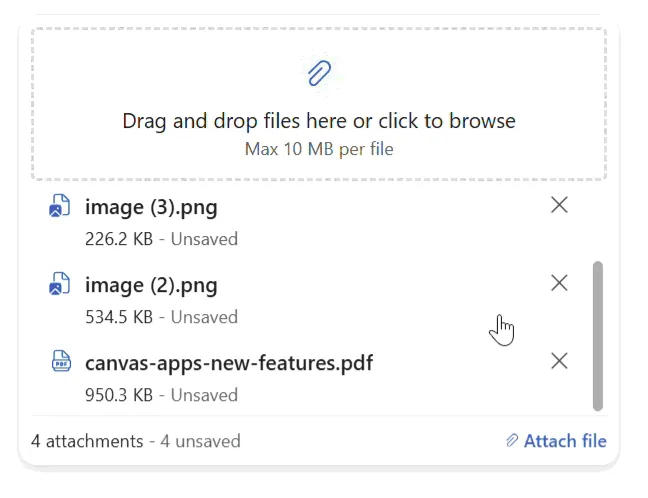
The classic attachments control only works inside a form. The new modern one also works on its own, anywhere on a screen. Users drag files in or pick several at once.
Still from the demo in What's new in Power Platform: October/November 2026 feature update, Microsoft Power Platform Blog.
The drop zone is on top, the files are below it, and the footer counts them. Notice the word Unsaved next to each file. Adding a file only stages it in the app. It is saved when you call SubmitForm, or Patch when the control is not in a form:
Patch(
    Requests,
    RequestsGallery.Selected,
    {Attachments: Attachments1.Attachments}
)
You limit what users can add with MaxAttachments, MaxAttachmentSize (in MB) and AcceptedFileTypes. The control works with SharePoint list attachments, Dataverse attachments and a Dataverse file column, which holds one file. It is in preview. Documentation.
Avatar group
A row of avatars for the people on a record: a project team, the reviewers, the owners. The ones that don't fit move behind a + button that opens a list.
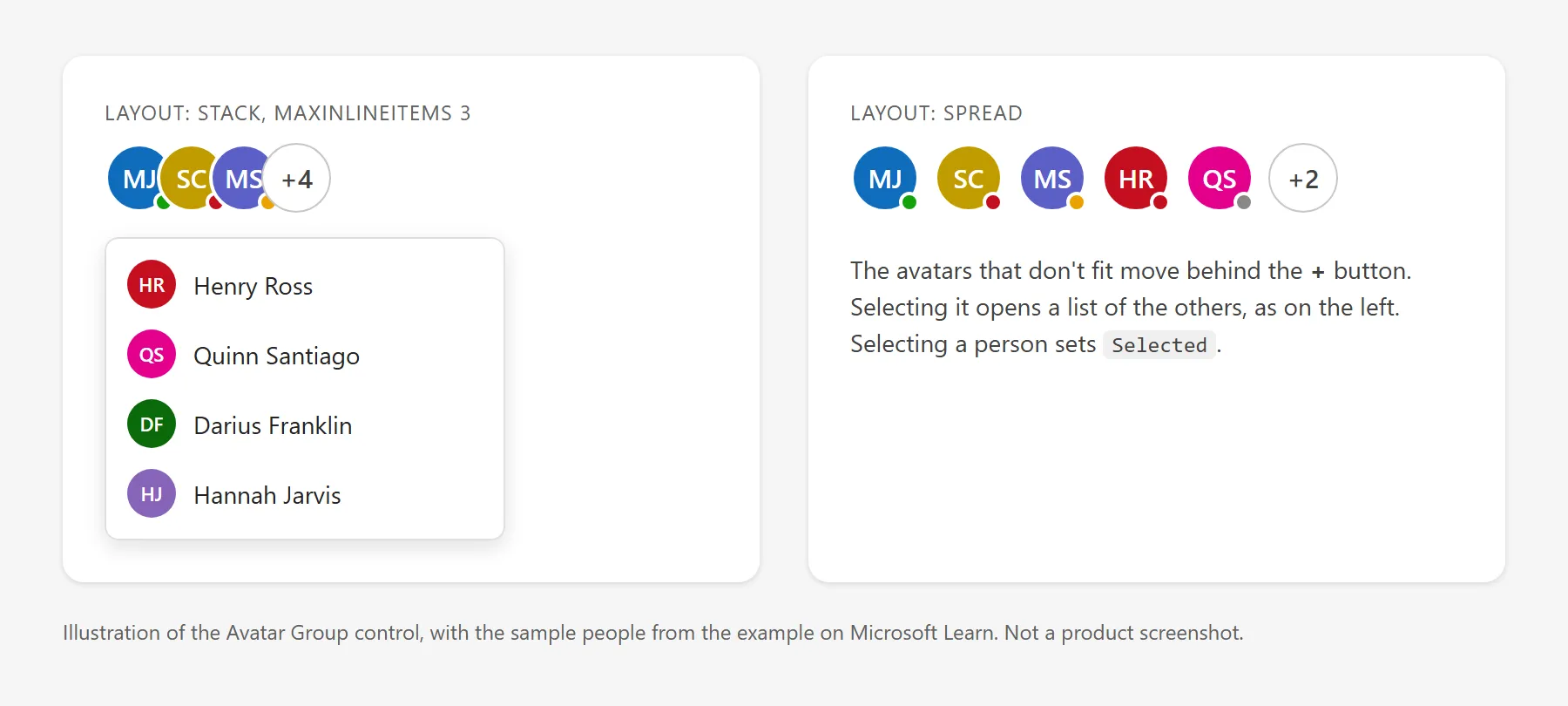
You bind Items to a table and tell the control which column holds the name, the image and the status. Layout switches between overlapping and spread out, and MaxInlineItems sets how many avatars show before the + button. When a user selects a person, you read it from Selected.
The control doesn't look anybody up. The photo and the presence dot show what your formulas give it, not live Teams status. Preview. Documentation.
Persona
One person, shown as an avatar with up to three lines of text next to it. Use it for the owner of a record or the signed-in user.
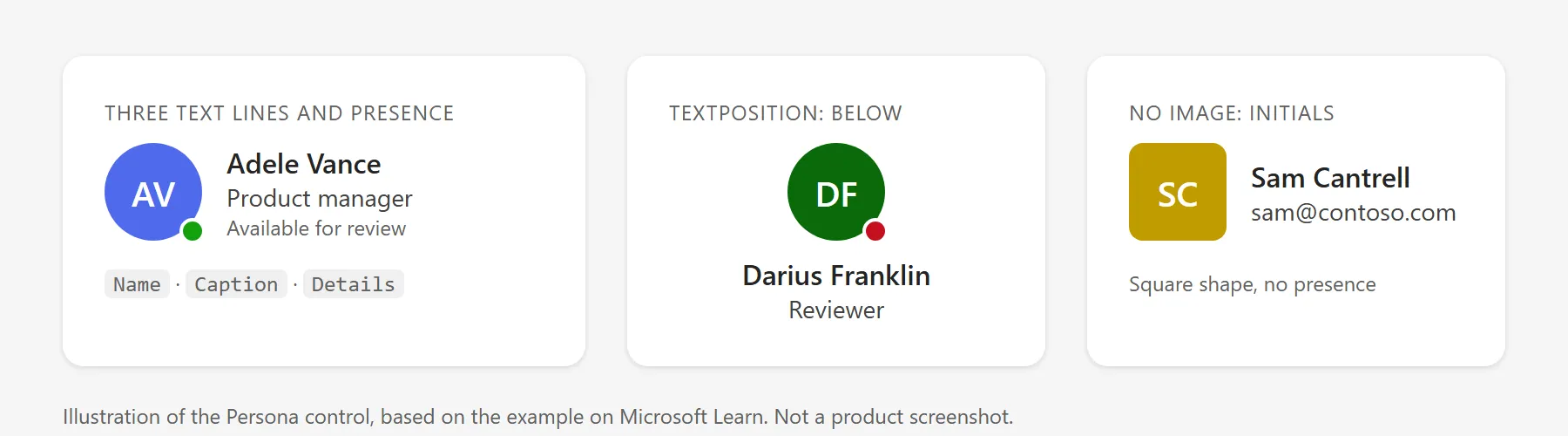
The three lines are Name, Caption and Details. Without an image, the avatar shows the initials from the name. TextPosition puts the text after, before or below the avatar. By default the control shows the signed-in user, with User().FullName and User().Email.
It becomes clickable when you give OnSelect a formula. As with Avatar group, presence is a value you set yourself. Preview. Documentation.
Metrics card
A KPI tile: a title, one big value, a line of context and a trend badge. Until now you built this from a container and four labels.
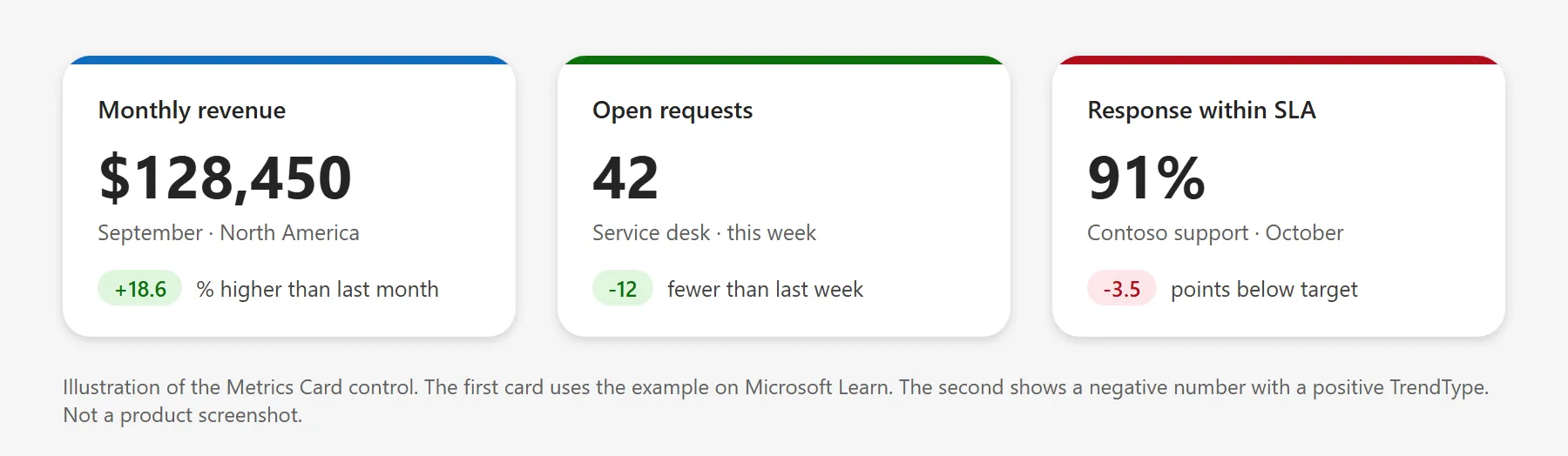
The card shows text, it doesn't calculate. You format the value yourself and put it in DisplayText. The badge shows TrendValue, with TrendText next to it.
The colour of the badge comes from TrendType, not from the sign of the number. That is why the middle card is green: twelve fewer open requests is good news. Preview. Documentation.
Card gallery
Records as cards, in a grid that fits as many columns as the width allows. Cards can be grouped under collapsible headings and selected.
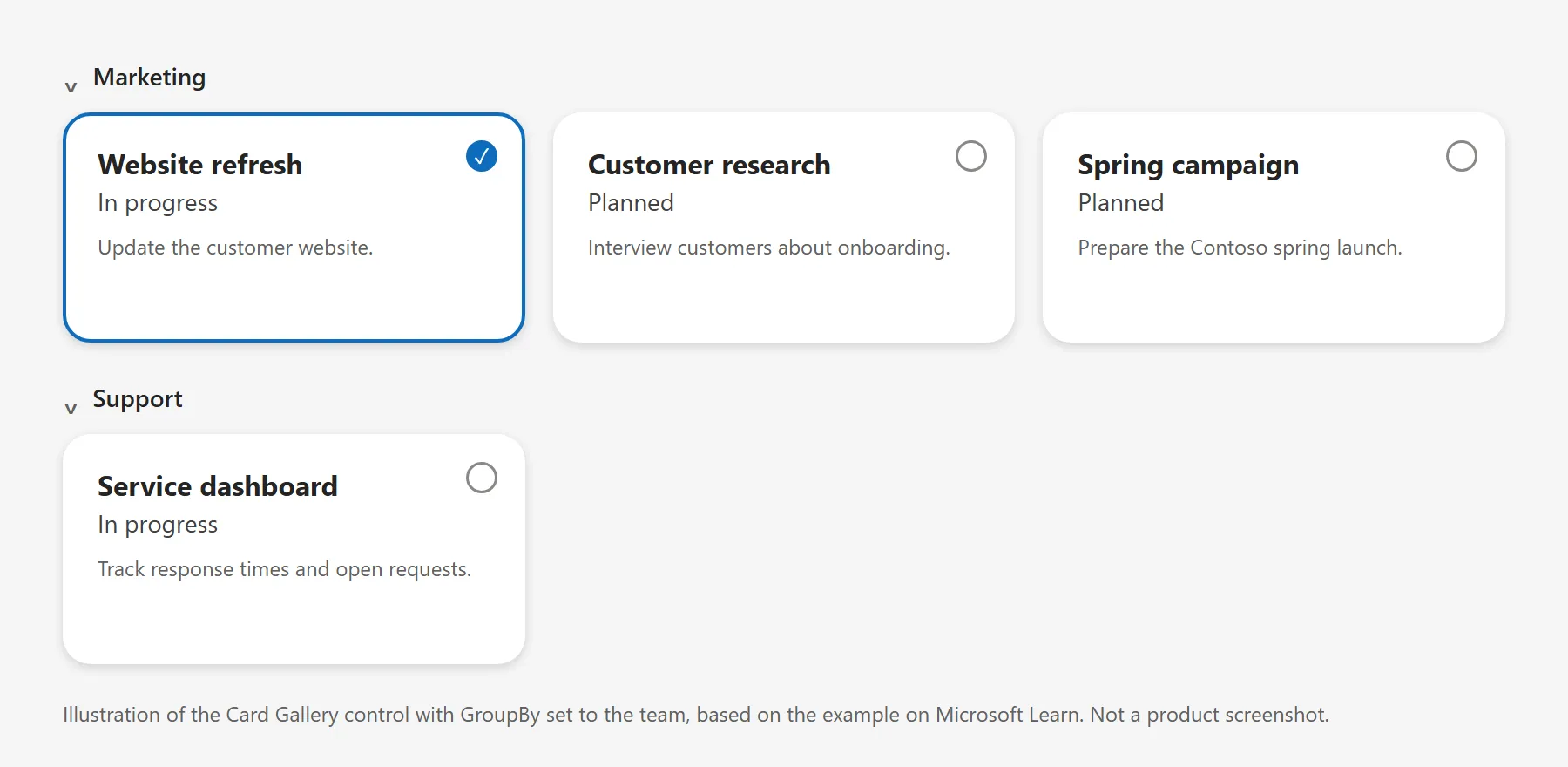
This is not a gallery with a template. You don't put controls in it. You map fields to fixed slots: Title, Subtitle, Description, Image and HeaderImage. GroupBy creates the headings, for example ThisItem.Team.
That makes it quick to set up and limited by design. All cards have the same height, and search and sorting have to happen in your Items formula. Preview. Documentation.
Data Grid pagination
The modern Data Grid can now show numbered pages, or load more records while the user scrolls.
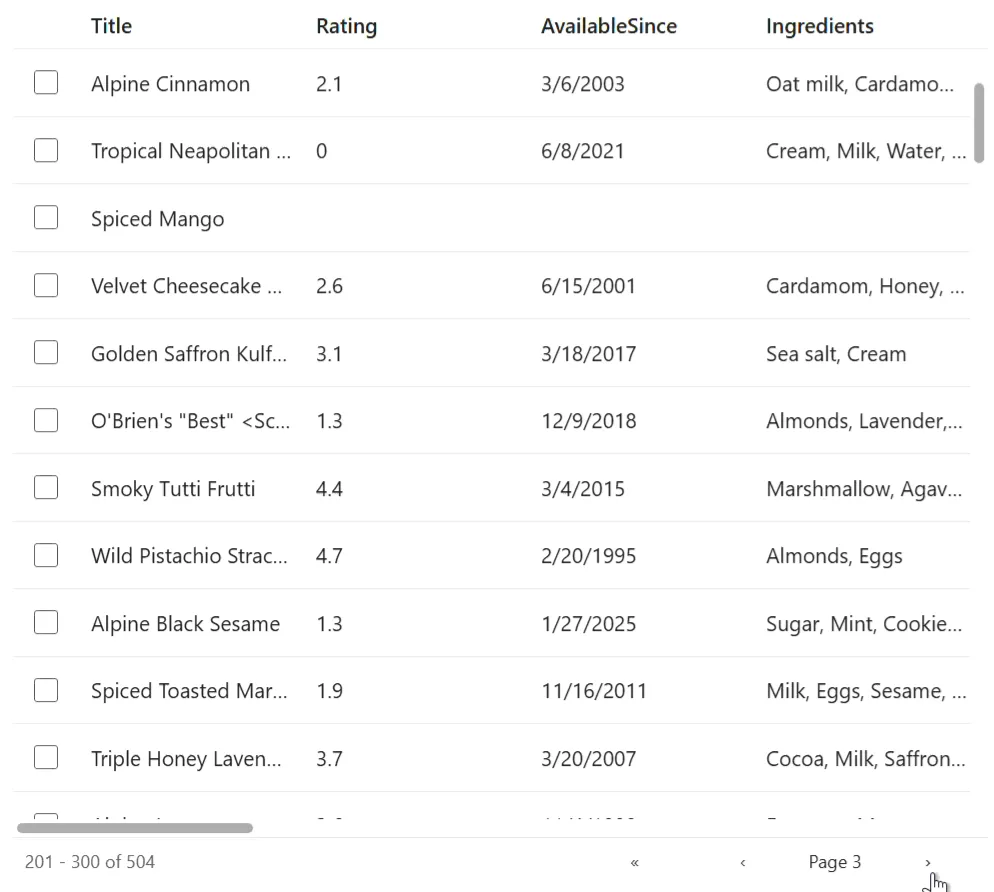
Still from the demo in What's new in Power Platform: October/November 2026 feature update, Microsoft Power Platform Blog.
This is the numbered mode. Bottom left you see which records are on the page, bottom right the pager. You choose the mode with the new Pagination property:
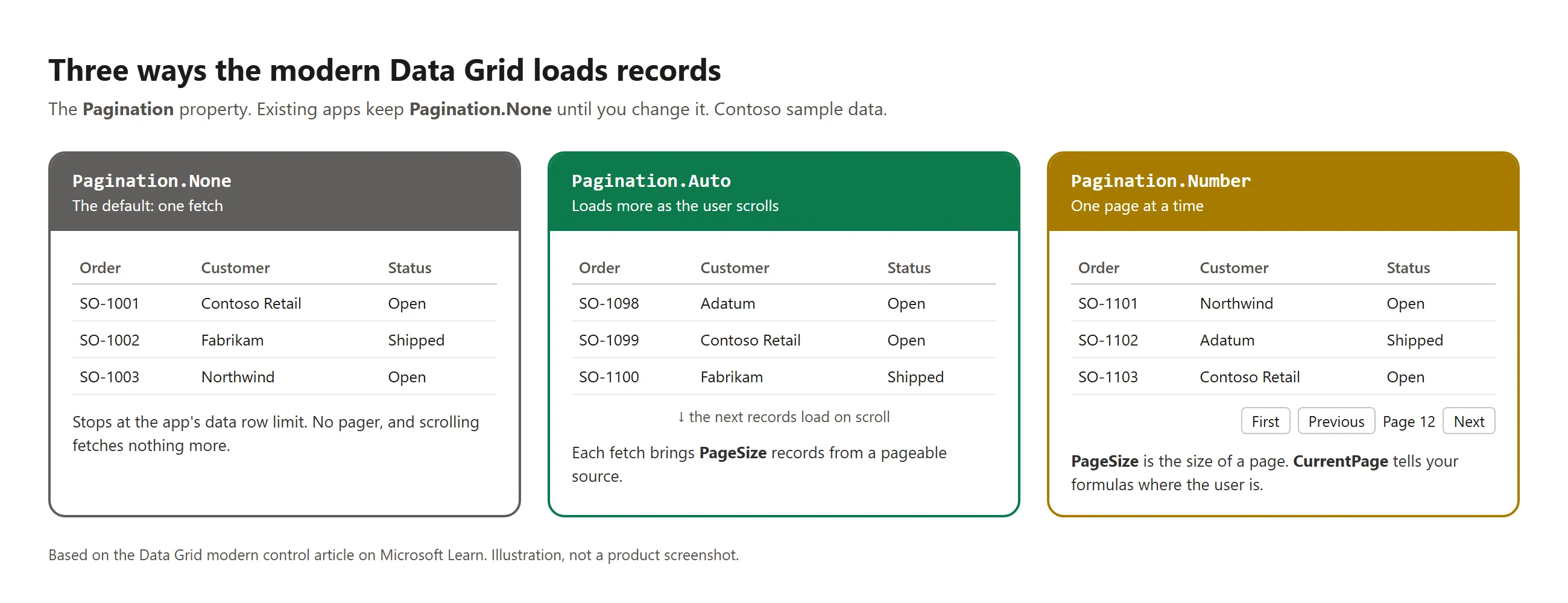
The default is Pagination.None, so existing apps don't change. PageSize sets how many records come per page or per fetch.
Two things to know. Paging doesn't make a formula delegable. And the search box only searches the records that are already loaded. To search the whole table, set DelegateSearch to true and filter in Items:
Filter(Products, StartsWith(Name, PagedDataGrid.SearchText))AI row summary in the Data Grid
Users can read an AI summary of a Dataverse row without opening the record. They point to a row, select the icon in the first cell, and a card opens.
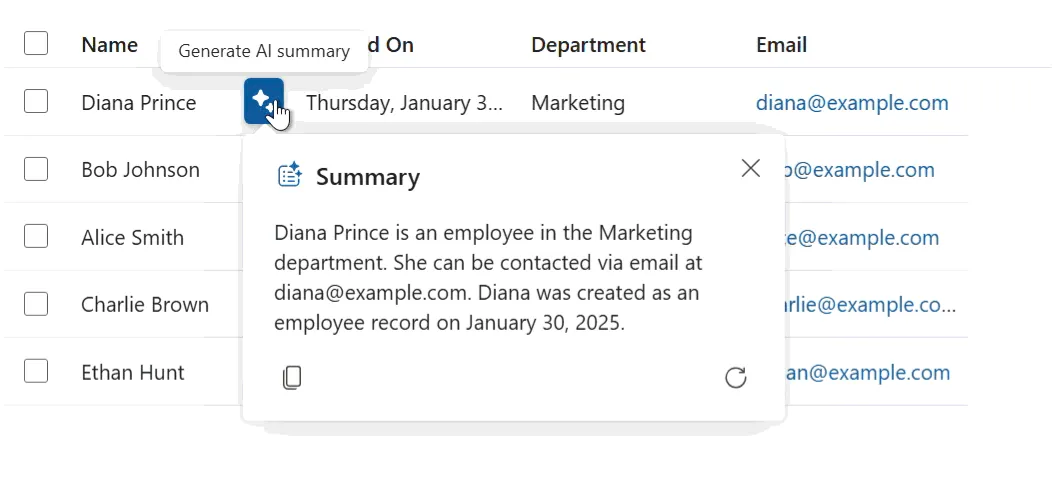
Still from the demo in What's new in Power Platform: October/November 2026 feature update, Microsoft Power Platform Blog.
The text comes from the row summary prompt on the Dataverse table, the same one model-driven apps use. So the grid has to be bound directly to that table. A collection doesn't work.
It is off by default, in two places. An admin allows Summary in canvas data grid for the environment, in the Power Platform admin center under Copilot > Settings. The maker then sets ShowAIRowSummary to true on the grid. It is a preview that is still rolling out. Documentation.
Dataverse.Unmask
A masked Dataverse column shows something like REF-*****. With the new Dataverse.Unmask function, a canvas app can show the real value when the user asks for it.
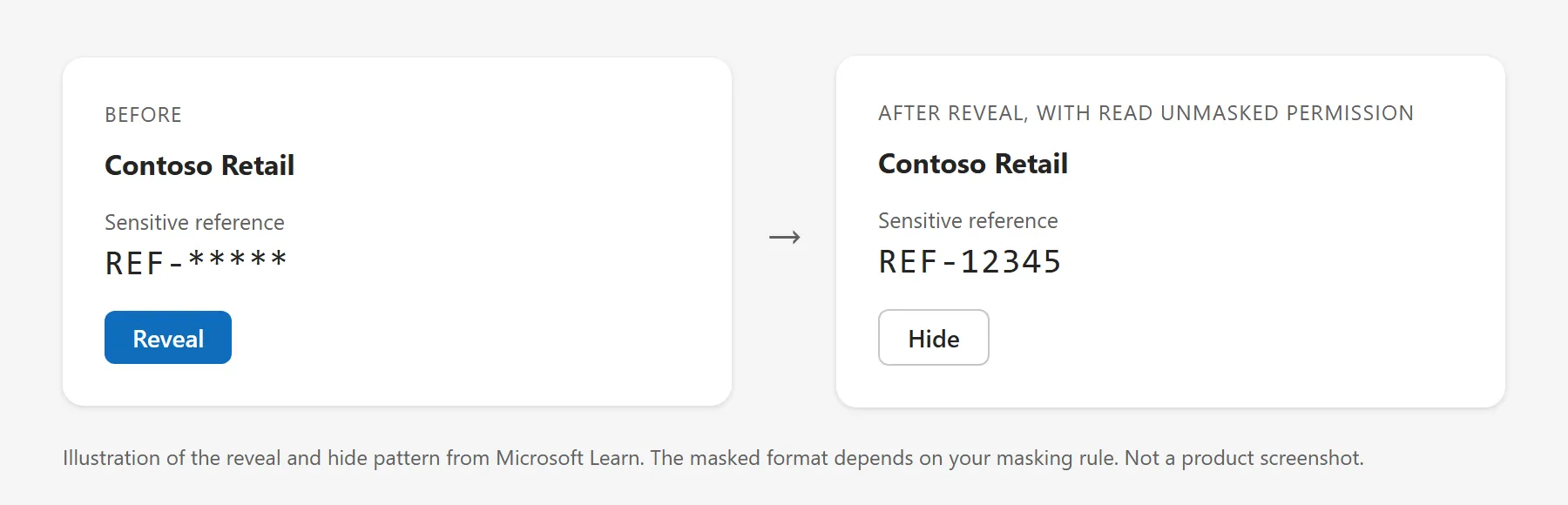
The formula behind the label:
If(
    locReveal,
    IfError(
        Dataverse.Unmask(Gallery1.Selected, 'Sensitive reference'),
        "Unable to show this value."
    ),
    Gallery1.Selected.'Sensitive reference'
)
The Reveal and Hide buttons only set locReveal. Dataverse decides whether the user gets the value: they need the Read unmasked permission in a column security profile. The function grants nothing by itself.
Test this with a normal user account, because system administrators always see everything. Don't store the unmasked value with SaveData or write it to a log. Preview since October. Documentation.
Authoring agent in canvas studio
An agent inside Power Apps Studio that builds or changes your app from a description. It first shows a plan. After you approve it, it writes the screens, controls and formulas in the app you have open.
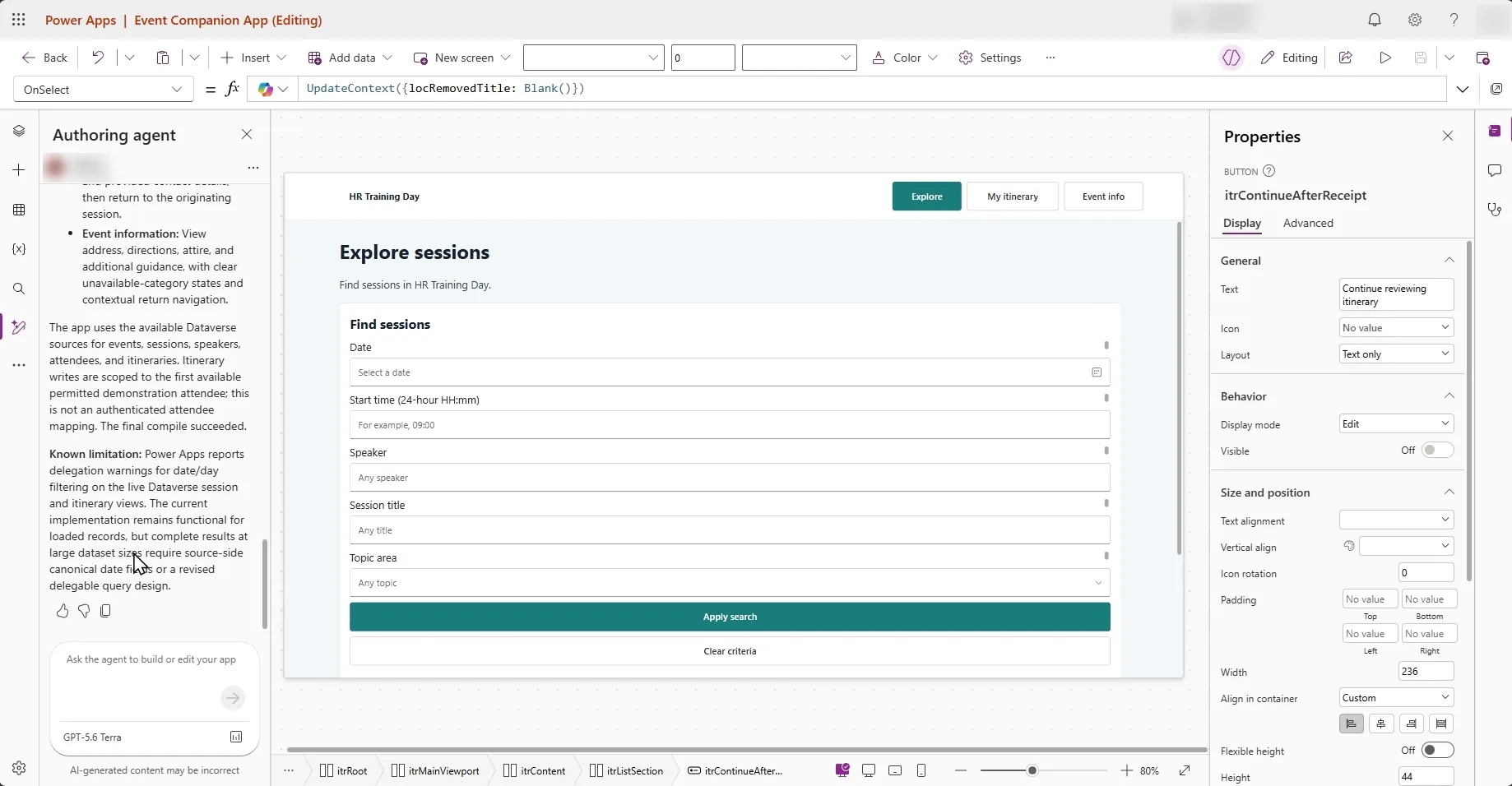
Screenshot from Build canvas apps with the authoring agent in Power Apps canvas studio on Microsoft Learn. Used with permission from Microsoft.
The pane on the left is the agent. Here it reports what it built and names a limitation it found, a delegation warning. The screen in the middle is the result, a normal canvas app you can keep editing by hand.
It runs on a GitHub account and GitHub bills the usage. A tenant admin has to turn it on under Tenant Settings > Agentic Coauthoring in Power Apps using GitHub. The agent can't add data sources, so add your data first.
The catch for most of us: the preview is only available in the United States, and only in English. Documentation.
New templates
Two smaller changes. A SharePoint custom form now starts with a responsive layout in several columns, not one long column. And every app you generate from data, not only from SharePoint, starts from the modern template with browse, new and edit screens built on modern controls. SharePoint forms, app from SharePoint.
Model-driven apps
Generative pages can call custom APIs
A generative page can now run business logic on the server, by calling a Dataverse custom API. Microsoft's example is an approval page.
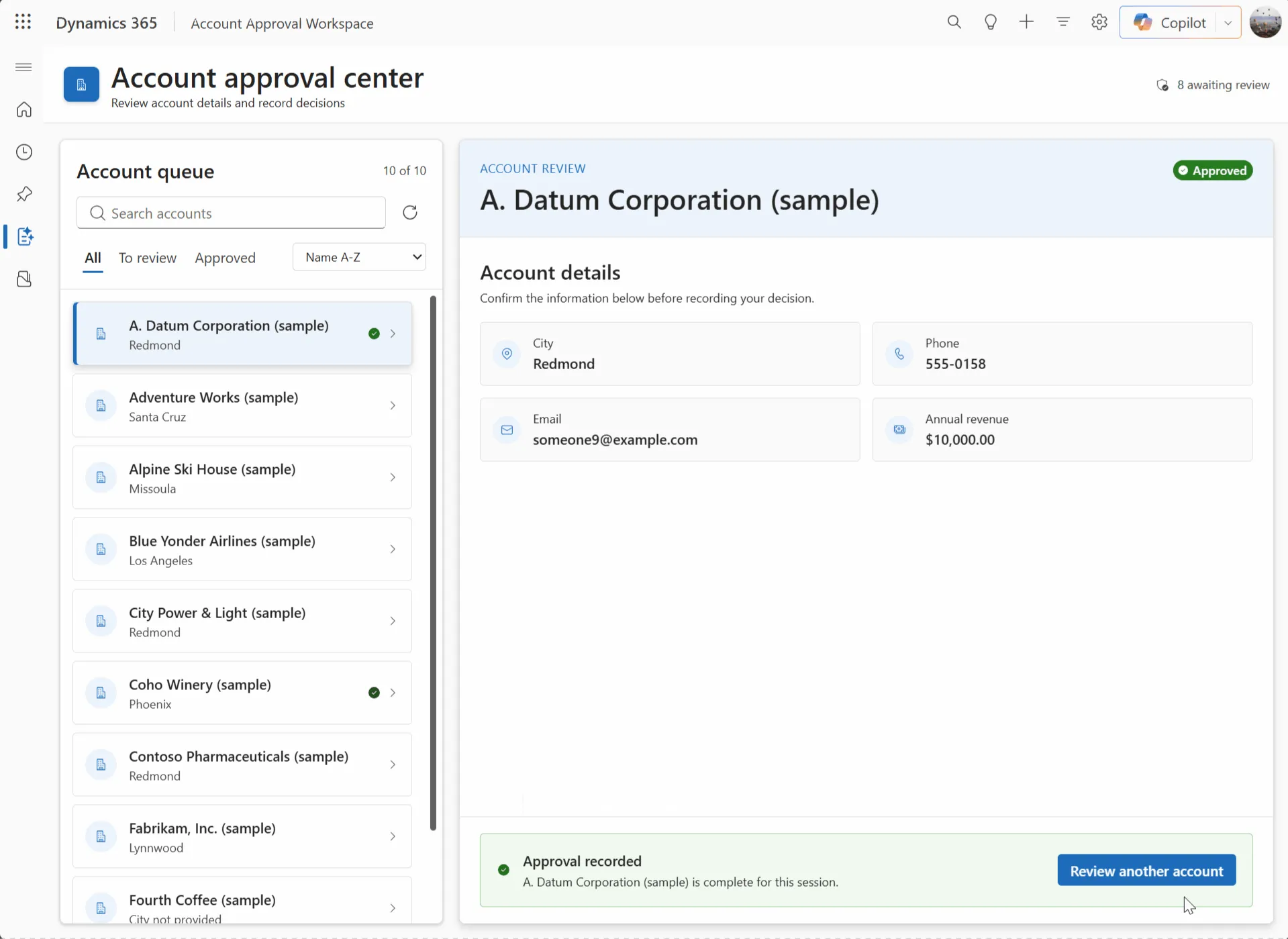
Still from the demo in What's new in Power Platform: October/November 2026 feature update, Microsoft Power Platform Blog.
The user picks an account from the queue and approves it. The page calls the custom API, and the answer comes back as the Approved badge and the Approval recorded message. The logic stays in Dataverse, and the call runs as the signed-in user.
In the designer you pick an existing custom API and describe when the page should call it. Published generative pages can also send load times and errors to Application Insights, without code in the page. An admin sets up the export for the environment once. Both are in preview. Documentation.
Business apps in Work IQ
Users can ask for data from a model-driven app in a conversation, without opening the app. For example: which projects are blocked? They can also update a record that way. Work IQ uses the views and forms of the app, respects permissions, and asks for confirmation before it saves a change. Preview. Documentation, and more background in my Ignite recap.
Power Automate for desktop
Scheduled triggers
Until now, running a desktop flow every night meant building a cloud flow with a recurrence trigger around it. Now you schedule the desktop flow directly, in Automation center under Scheduled triggers (Preview).
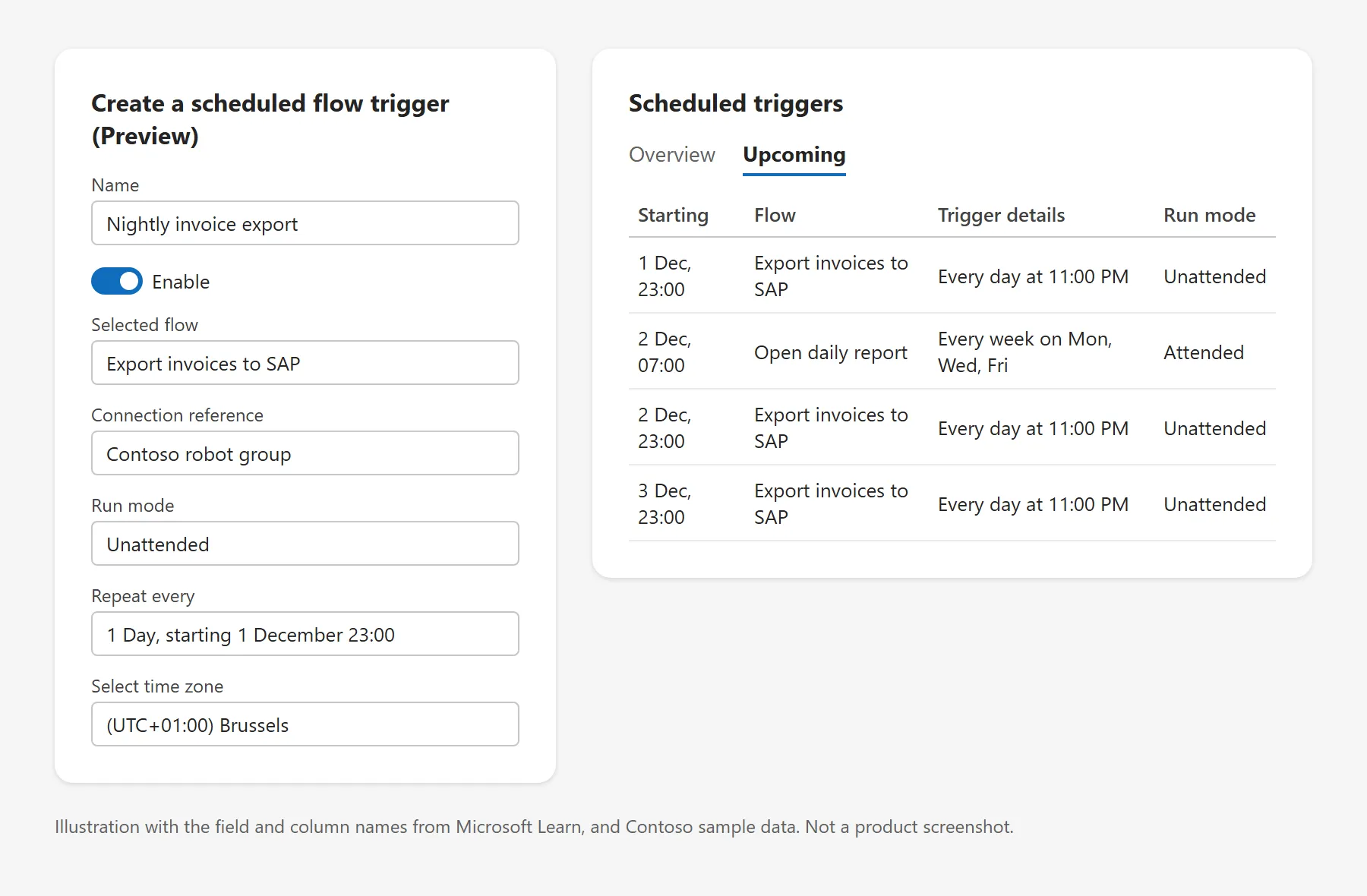
You pick the flow, the machine it runs on through a connection reference, attended or unattended, and the recurrence. The Upcoming tab then lists the runs that are planned.
Good to know: missed runs are not caught up. If the trigger was disabled or the service was down, it continues at the next occurrence. And during the preview, disable all scheduled triggers before you restore an environment. The preview is rolling out per region. Documentation.
Flowchart mode
A second way to look at a desktop flow. The numbered list stays, and next to it you get a canvas where every action is a box and every path is a line.
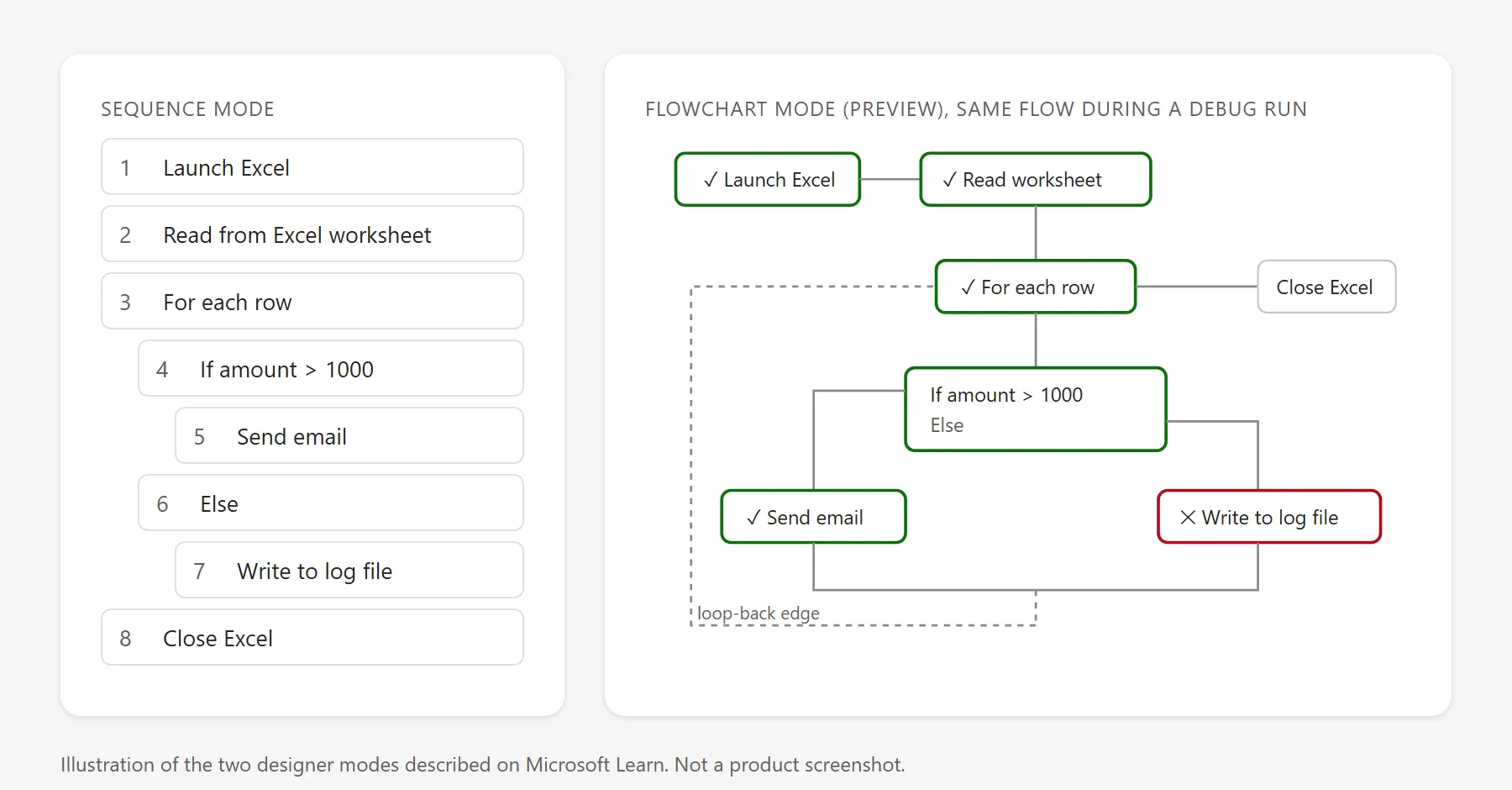
Both views show the same flow. You switch in the View menu. Branches and loops are much easier to follow as a drawing, and during a debug run each box shows whether it succeeded or failed.
You can only switch to flowchart mode when the flow has no errors. Preview, rolling out per region. Documentation.
Desktop flow templates
You can save a desktop flow as a template and publish it, so colleagues start new flows from it. Think of a standard block for error handling, logging or reporting. A flow made from a template is a copy. If you update the template later, flows that already exist don't change. Documentation.
Admin and governance
Send Monitor alerts to Teams or Azure DevOps
Alerts from Monitor in the admin center could only send an email. Now an alert can start a flow, with the new trigger When an alert fires in the Power Platform for Admins V2 connector. From there it goes wherever a connector can reach.
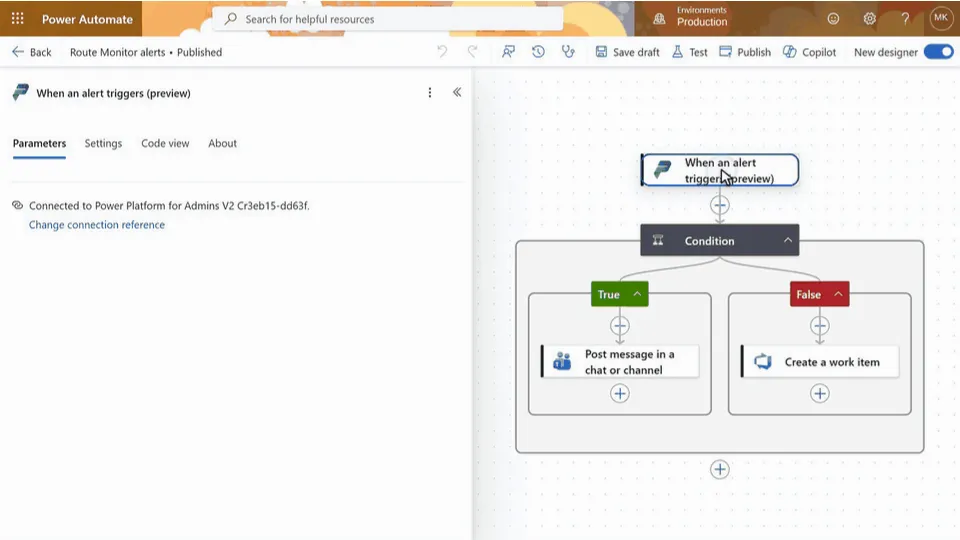
Still from the demo in What's new in Power Platform: October/November 2026 feature update, Microsoft Power Platform Blog.
This is Microsoft's example flow: the trigger, a condition, a Teams message in one branch and an Azure DevOps work item in the other. The whole route looks like this:
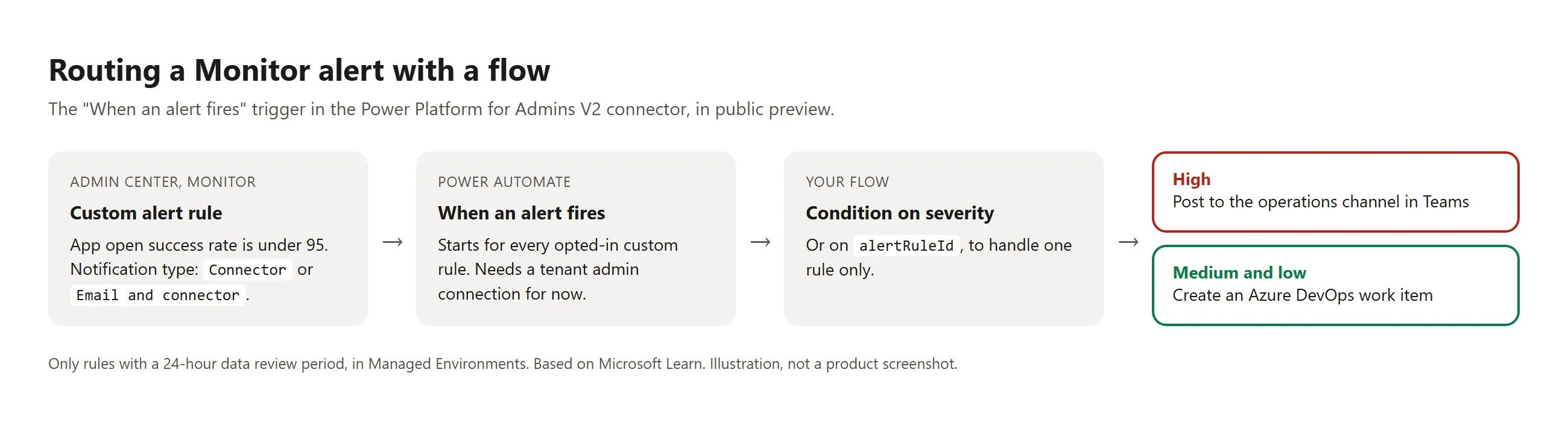
In the alert rule you set Notification type to Connector or Email and connector. The trigger then fires for every rule that has this setting, not for one rule. So filter in the flow, on severity or alertRuleId.
For now the connection needs a tenant admin account, and it only works for alert rules with a 24-hour review period in Managed Environments. Preview. Documentation.
Monitor metrics export
Monitor keeps 30 days of metrics. With the new export API you copy them to your own storage, in OpenTelemetry format, and keep them as long as you want.
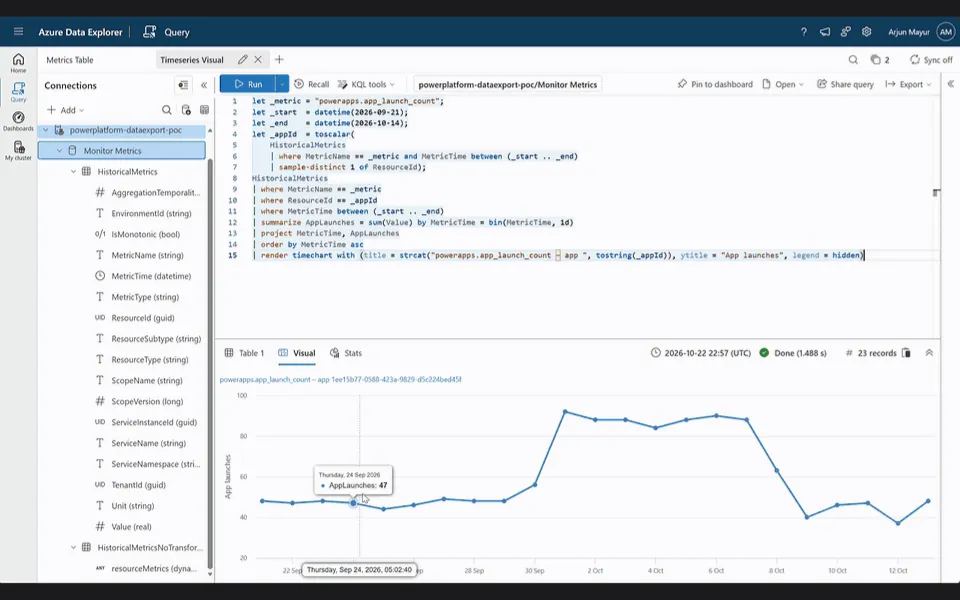
Still from the demo in What's new in Power Platform: October/November 2026 feature update, Microsoft Power Platform Blog.
Here the exported app launch count is charted in Azure Data Explorer with a KQL query. Splunk and Datadog work too. It also lets you share a dashboard with people who have no access to the admin center. Preview. Documentation.
Power Platform admin plugin in Cowork
A plugin for Copilot Cowork that answers governance questions about your tenant in plain language. For example: which environments have no owner, or what a policy change would affect. Preview. Documentation.
December: mostly deadlines
Microsoft's post says little about December. The dates below come from the deprecations page on Microsoft Learn.
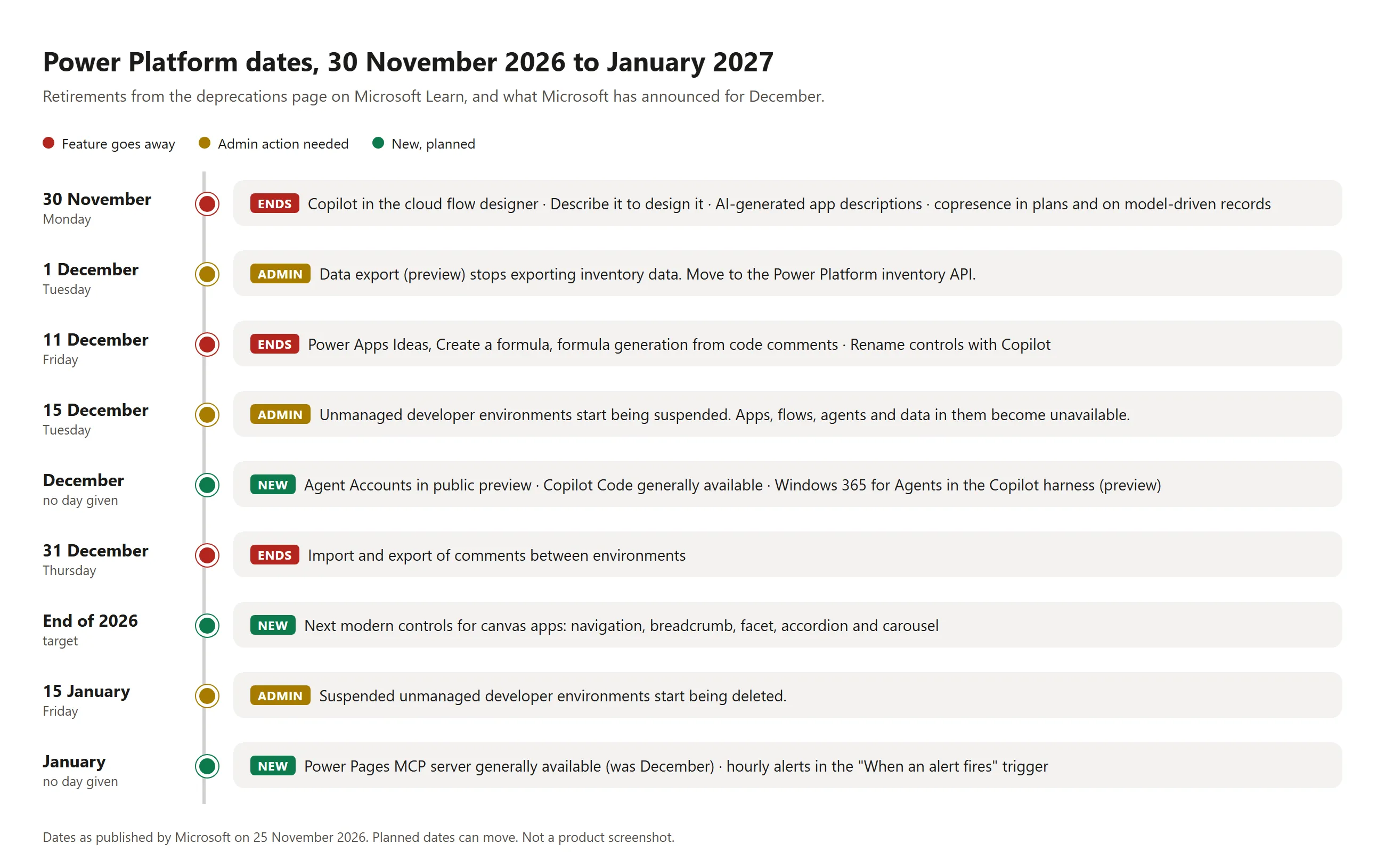
What goes away
| Date | What ends | What to do |
|---|---|---|
| 30 November | Copilot in the designer for cloud flows and agent flows | Use the designer, templates and the expression editor. Microsoft points to the Power Automate plugin for an AI assistant such as GitHub Copilot. |
| 30 November | Describe it to design it in Power Automate | Create flows manually or from a template. |
| After 30 November | AI-generated descriptions for canvas and model-driven apps | Write app descriptions yourself. |
| After 30 November | Copresence in Power Apps plans and on model-driven records | Agree who edits a plan. Record sharing keeps working. |
| After 1 December | Inventory data in data export (preview) | Move to the Power Platform inventory API. Usage and environment exports continue for now. |
| After 11 December | Power Apps Ideas, Create a formula and formula generation from code comments | Write Power Fx in the formula bar. Explain this formula stays. |
| After 11 December | Rename controls with Copilot | Rename controls in Tree view. |
| After 31 December | Import and export of comments between environments | Keep context in source control, a wiki or release notes. |
None of these delete anything you built. Existing flows, formulas and descriptions stay as they are. Update your training material and tell your makers.
There is a pattern here. The built-in Copilot authoring features retire, while Microsoft moves AI authoring to agents and plugins, such as the authoring agent above and the plugins for coding agents.
Unmanaged developer environments
This is the one that can cost data.
- 15 November: you can no longer create an unmanaged developer environment. Signing up for the Power Apps Developer Plan doesn't create one any more. New Dataverse for Teams environments can't be created either.
- 15 December: existing unmanaged developer environments start being suspended. Their apps, flows, agents, Power Pages developer sites and data aren't available.
- 15 January 2027: suspended environments start being deleted.
Before 15 December:
- In the Power Platform admin center, filter the environments on Type = Developer and Managed = No.
- For each one that is still needed, turn on Managed Environments or move its solutions to a sandbox.
- Tell makers to export their solutions if they aren't sure.
Managed Environments use rights are not part of the Developer Plan. Users need a premium licence to run apps and flows in a managed developer environment. Going forward, each user gets one managed developer environment.
What is planned
| What | Planned | Source |
|---|---|---|
| Agent Accounts for Copilot Studio agents | Public preview in December | Ignite recap |
| Copilot Code | General availability in December | Ignite recap |
| Windows 365 for Agents in the Copilot harness | Preview from December | Ignite recap |
| Navigation, breadcrumb, facet, accordion and carousel controls | "By the end of 2026" | Feature update |
| Power Pages MCP server | General availability in January 2027 | Roadmap item 577813 |
| Hourly alerts in the When an alert fires trigger | By January 2027 | Alerts documentation |
The Power Pages MCP server shows why it pays to check dates. The 2025 release wave 2 plan still says December 2026. The newer roadmap entry says January 2027. Planned dates move, so read this table as intent.
Where the roadmap lives now
The Release Planner for Dynamics 365 and Power Platform retired on 15 November. There are no release wave documents any more, and the September wave 2 announcement didn't happen. Roadmap items are now published continuously on the AI at Work roadmap, the renamed Microsoft 365 roadmap.
Items dated before 1 June 2026 were not migrated. The old release plans stay on Microsoft Learn as history. Saved personal views from the Release Planner are gone, so rebuild them as filters on the new roadmap.
If your release process had a step "read the wave 2 plan in September", replace it with a monthly check of three pages: the roadmap, the monthly feature update and the deprecations page. Microsoft explains the move in Moving beyond release waves with the AI at Work roadmap.
Sources
- What's new in Power Platform: October/November 2026 feature update, Tiffany Treacy
- Important changes (deprecations) coming in Power Platform, Microsoft Learn
- Modern controls and properties in canvas apps, Microsoft Learn
- Moving beyond release waves with the AI at Work roadmap, Dynamics 365 blog
- Use Power Pages MCP server capabilities, 2025 release wave 2 plan
Published